
Step 1
Begin by logging in to UnDesked. Navigate to the Digital Signage dropdown menu, then select Bulletins. Here, you will find a list of all the bulletins that you have created within the platform.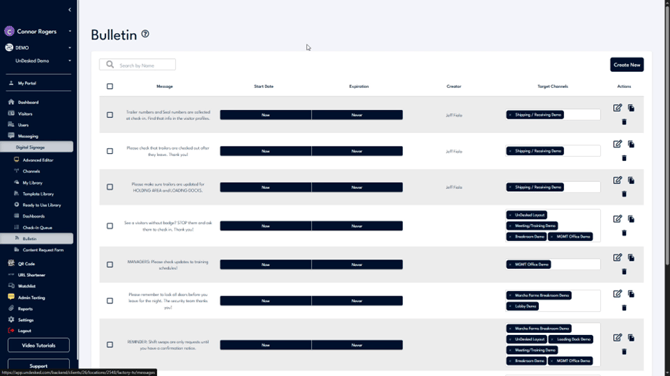
Step 2
To create a new bulletin, click on Create New. Input your message, set an expiration date, and choose the desired channel for assignment. Once completed, click Save.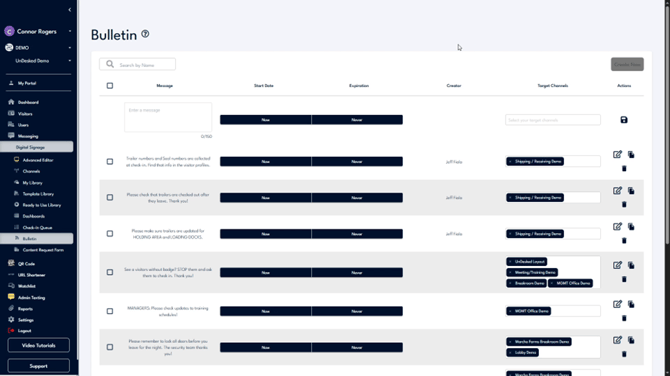
Step 3
You can modify an existing bulletin by using the actions available on the right-hand side. These actions allow you to edit, duplicate, or delete a bulletin. Additionally, you have the option to select multiple bulletins for simultaneous deletion or duplication.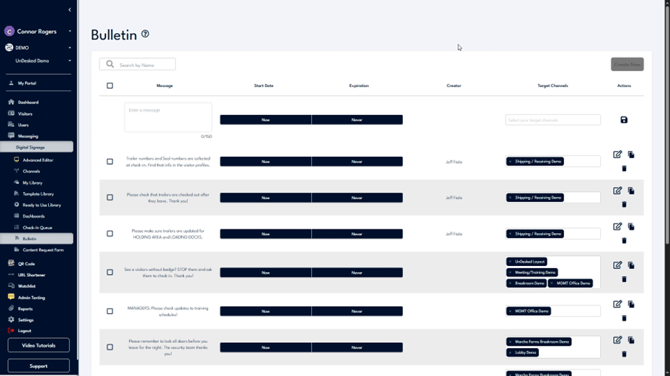
Step 4
For additional support, click the Support button located at the bottom left side of the navigation bar. Select Contact Support to access our support information or click Support Help to create a ticket for our internal support team.