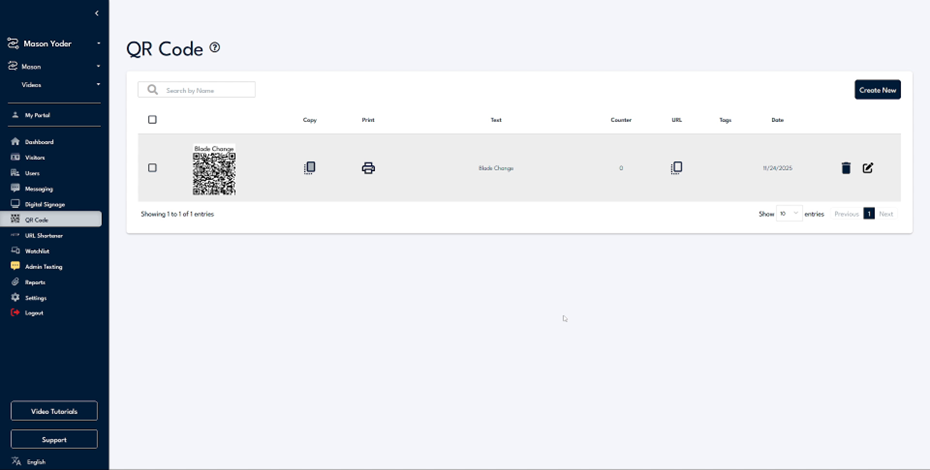
Step 1
In this section, we'll cover how to utilize QR codes to provide users with access to the Undesk platform without needing a physical kiosk or other device. You can associate a QR code with either a workflow or a hub. For example, if there's a hub containing materials for changing the blade on a particular piece of machinery, you can generate a QR code for this hub and customize its name accordingly.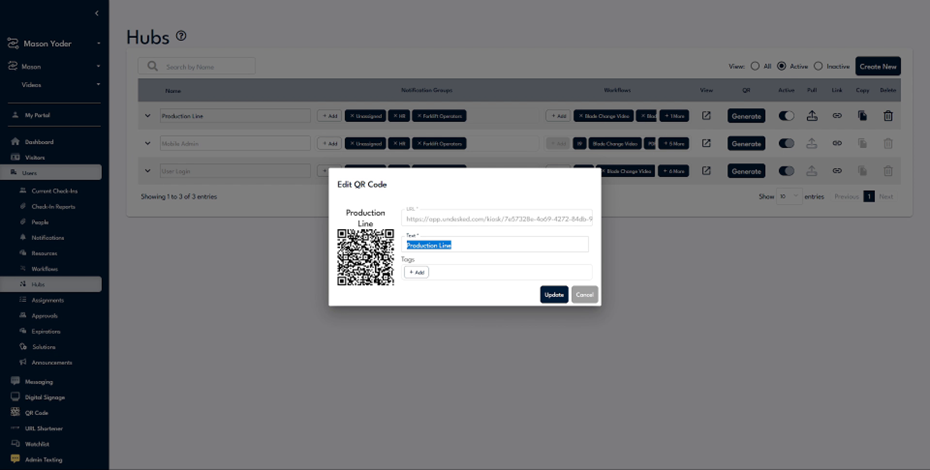
Step 2
Consider naming the QR code something relevant, such as "Blade Change." If you plan to use multiple QR codes, it's advisable to create a tag for easy filtering. This organization is beneficial when generating reports based on QR code data.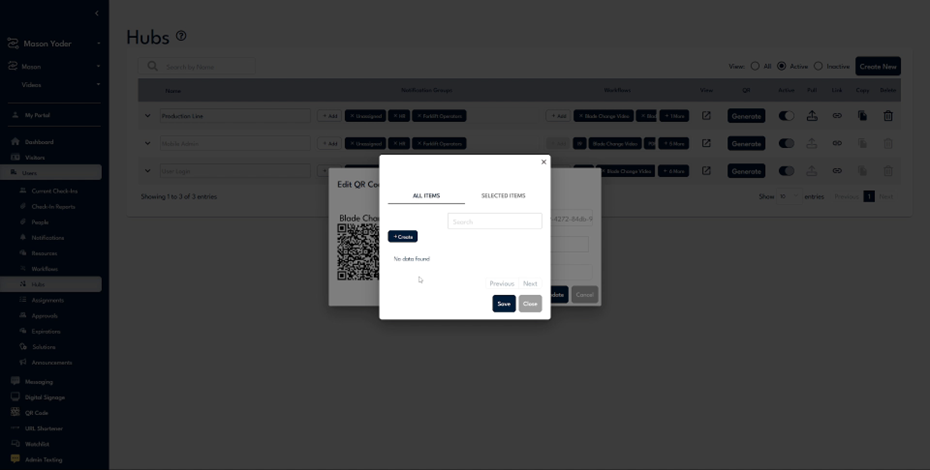
Step 3
Organizing QR codes efficiently is crucial. Once you've created a QR code, you can either click on it to copy it to your clipboard or navigate to the QR code section where you'll find options to copy or print the code.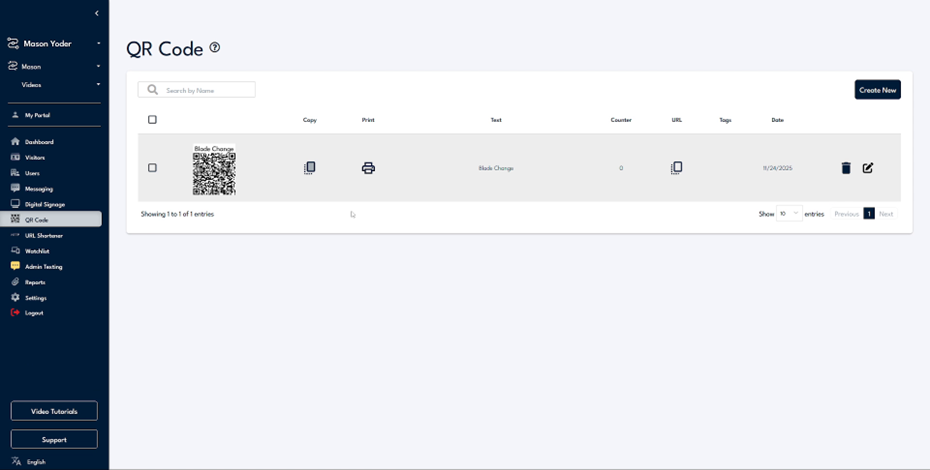
Step 4
The interface will display information such as the QR code's title, access count, and any associated tags. You'll also see the creation date of the QR code.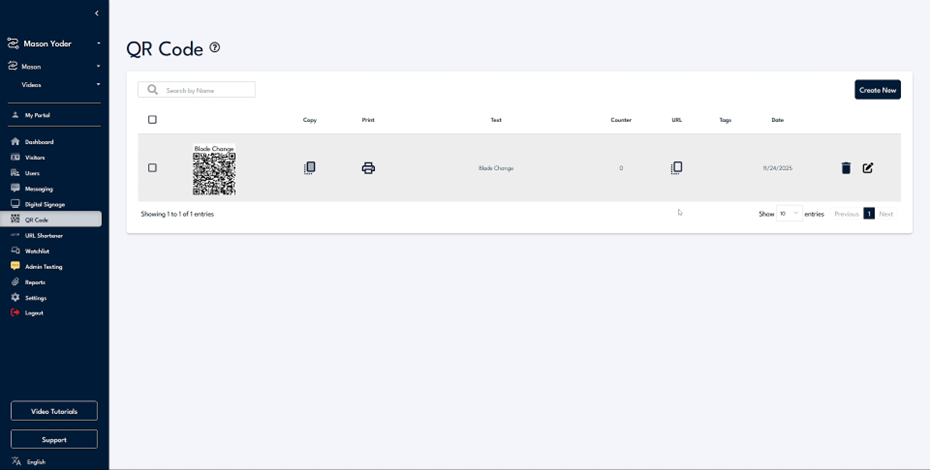
Step 5
For an existing QR code, you have the option to edit the associated text or change the linked URL. For instance, if you have training videos accessed via a QR code that updates weekly, you can simply change the URL to point to the new content.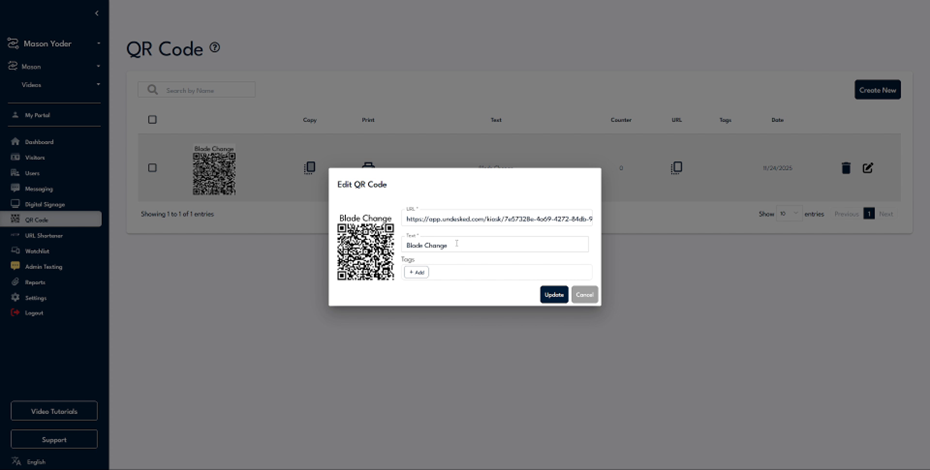
Step 6
To avoid printing a new QR code weekly, you can update the URL to connect to a different workflow containing the new training materials. This approach maintains the same QR code, minimizing the need for reprinting.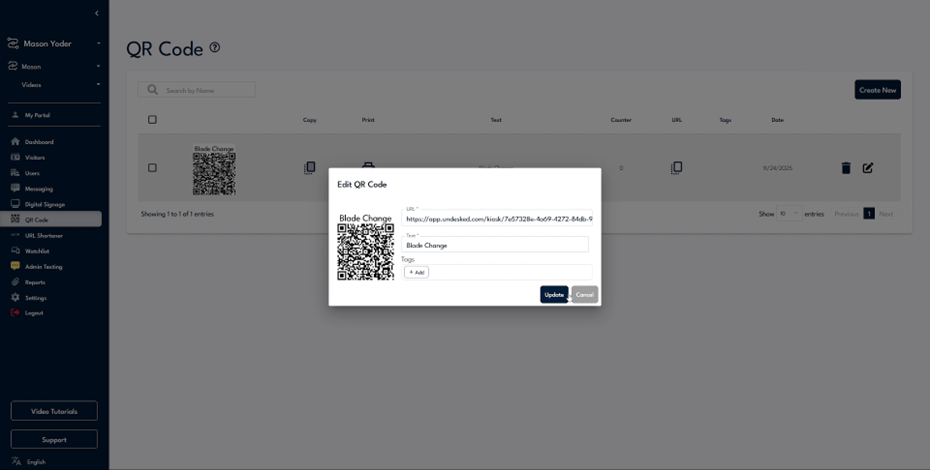
Step 7
This concludes the basic overview of using QR codes. Should you have any questions regarding QR code creation or optimal usage strategies, please feel free to contact the Undesked team for assistance.