
Step 1
Log in to the UnDesked platform and click on "Digital Signage" in the navigation bar. Here, you will see a list of all your channels and the content assigned to each one.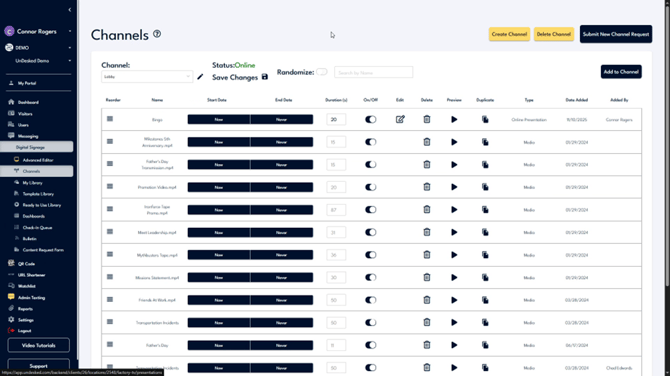
Step 2
If your account does not have a Digital Signage channel, click on "Submit New Channel Request" located at the top right corner of the screen. You can request a new channel, and our support team will assist you. You also have the ability to switch between channels to edit them by clicking on the "Channel" dropdown menu.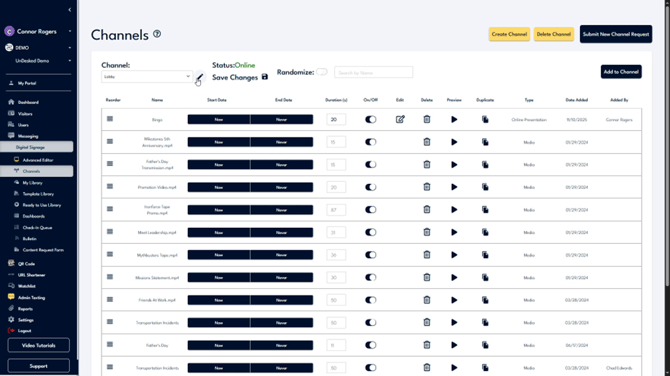
Step 3
Within the channel interface, you can rename the channel, check their online status, randomize the content, or save and update the player content. All content associated with the channel is displayed below. You can reorder this content and review information related to each piece.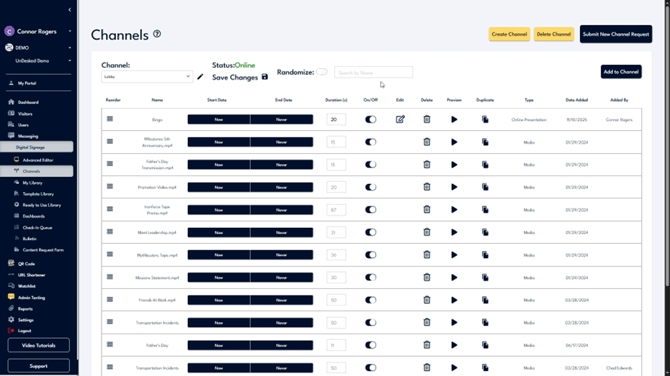
Step 4
Control the timeframe during which the content plays by setting a start and end date. Click on the "Now or Never" button, uncheck "Now" to set a start date, and uncheck "Never" to set an end date. Click "Confirm" when you are finished.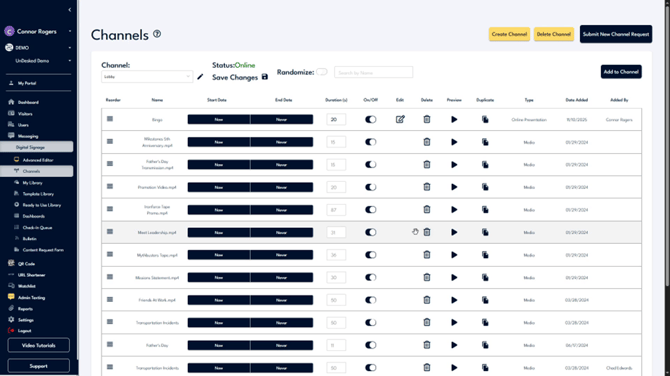
Step 5
You can assign a playback duration to images or PowerPoints, enable or disable the playback of specific content using the toggle, or preview the content by clicking on the "Preview" button. If the file is a presentation, you can edit it by clicking on the "Edit" button. Additionally, you can delete content by clicking on the "Delete" icon or duplicate it by clicking on the "Duplicate" icon.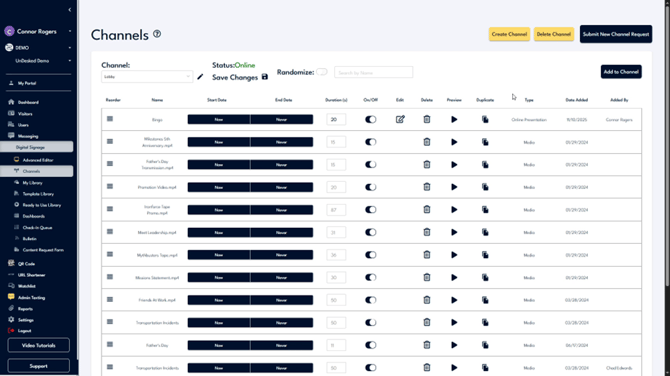
Step 6
Additional general information about each piece of content can be found on the right-hand side of each line item. To add new content to a channel, click the "Add to Channel" button. Navigate to the piece of content you wish to add, then click "Update Channel."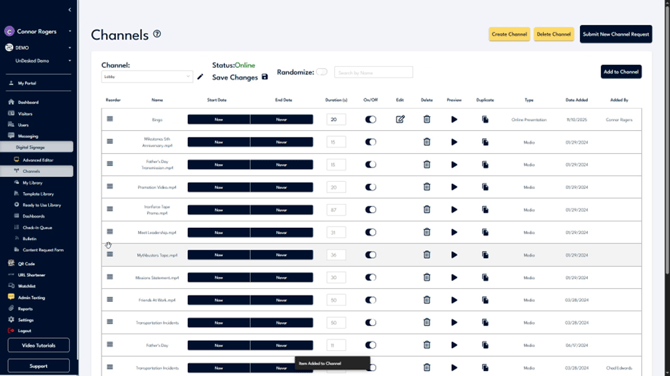
Step 7
The newly added content will appear at the bottom of the list, and you can reorder it as necessary. If you have any further questions, you can contact us by clicking on the "Support" button located at the bottom left of the navigation bar. Choose "Contact Support" to view our support information or "Support Help" to create a ticket that will be sent to our internal support team.