
Step 1
To begin managing your digital signage library, log into UnDesked. Click on the "Digital Signage" dropdown and select "My Library." Here, you will find all your digital signage resources available for assigning to your channels.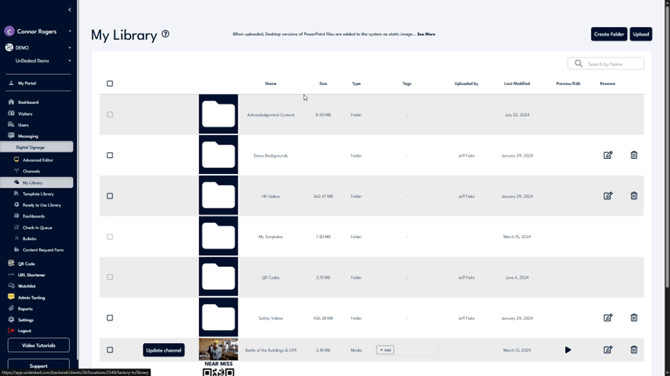
Step 2
In the top-right corner of the screen, you have the option to organize your content by clicking "Create Folder." Alternatively, click "Upload" to add new content. Supported file types include PNG, JPEG, GIF, SVGs, DOCs, PDFs, PowerPoints, and MP4s. You can rename folders by clicking on the "Rename" icon or delete a folder using the "Delete" icon.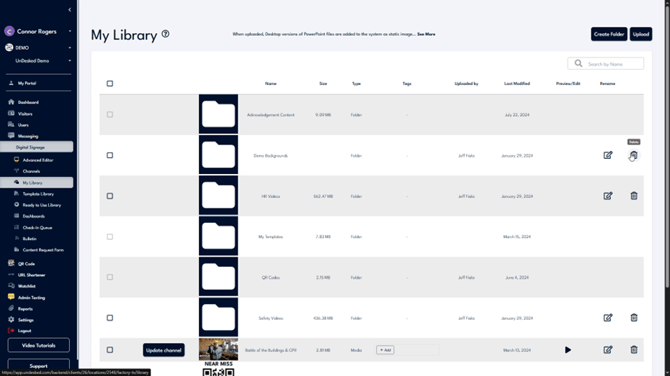
Step 3
To add content to your channel directly from the library, locate the desired content and click on "Update Channel." A list of your digital signage channels will appear, allowing you to assign the content to one or more channels.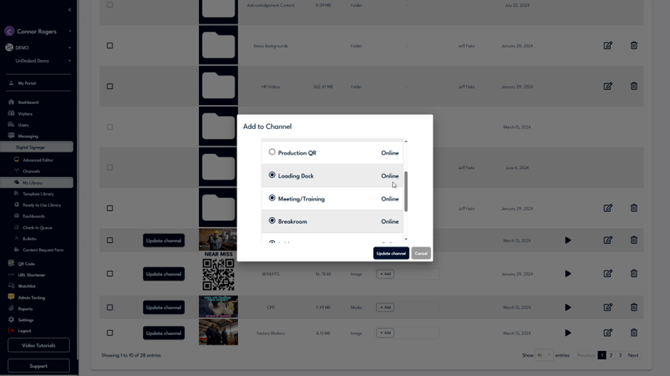
Step 4
Select as many channels as needed, then click "Update Channel." For any additional queries, access support by clicking the "Support" button on the bottom left of the navigation bar. Select "Contact Support" for support details or "Support Help" to create a ticket for our internal support team.