Step 1
Examine how assignments can help maintain organization and ensure tasks are completed on schedule. With assignments, workflows can be directed to specific users or groups, either automatically or manually, and can even recur. This efficient method guarantees that tasks reach the appropriate individuals promptly.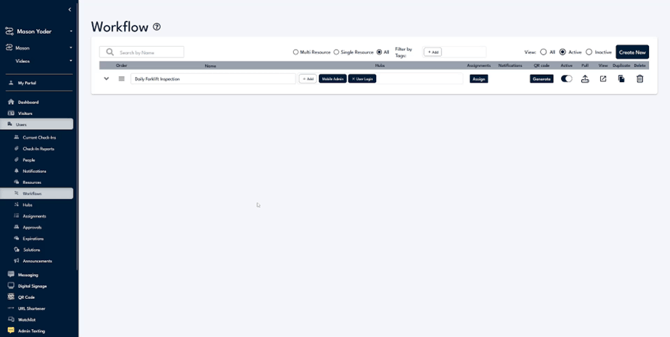
Step 2
Explore a daily forklift inspection workflow to assign it to the forklift team every day. Select the assign option, where numerous options are available. You can make this a triggered workflow, meaning it will be assigned whenever another workflow is completed.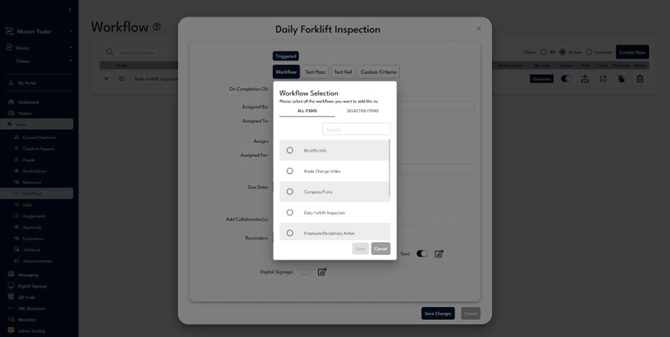
Step 3
Consider a scenario where the workflow is assigned after a benefits information workflow is completed. However, this is not applicable in our case. Additionally, workflows can be triggered based on test results or other advanced custom criteria. A separate video will cover the use of these advanced options.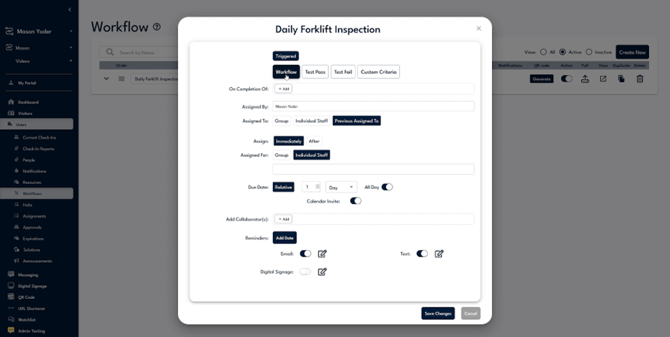
Step 4
For this case, disable the triggered option as the workflow should be a daily assignment. Assign by selecting the person responsible for the assignment; for now, assign it to yourself.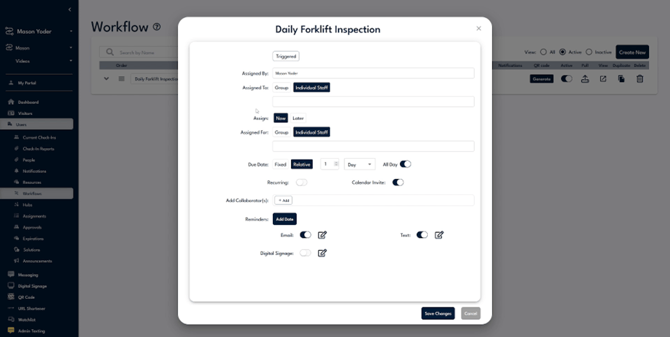
Step 5
You can assign the task to specific individuals or to a group. By entering names, tasks will be assigned directly to them. Alternatively, use the group option to assign the task to a group, such as the forklift operators who will complete the inspection daily.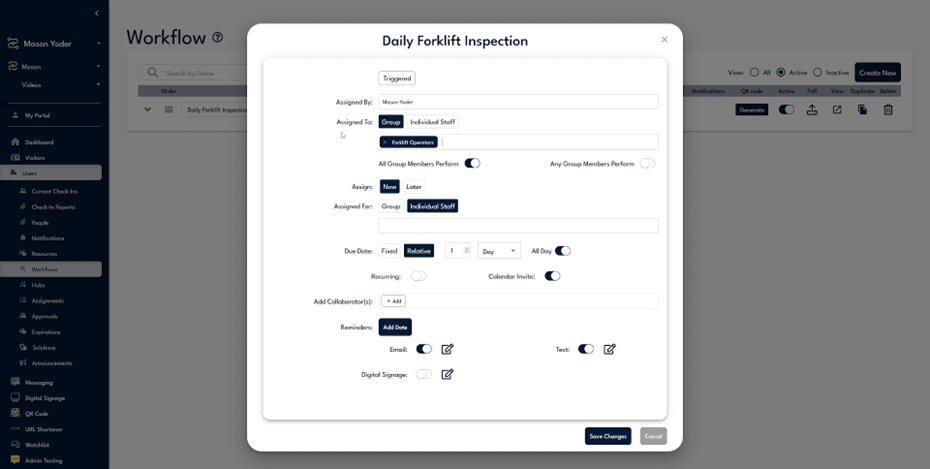
Step 6
Choose whether each forklift operator should complete an inspection, or opt for any group member to perform. In this setup, the assignment is distributed among all operators, and once one begins, it is removed from the queue for others.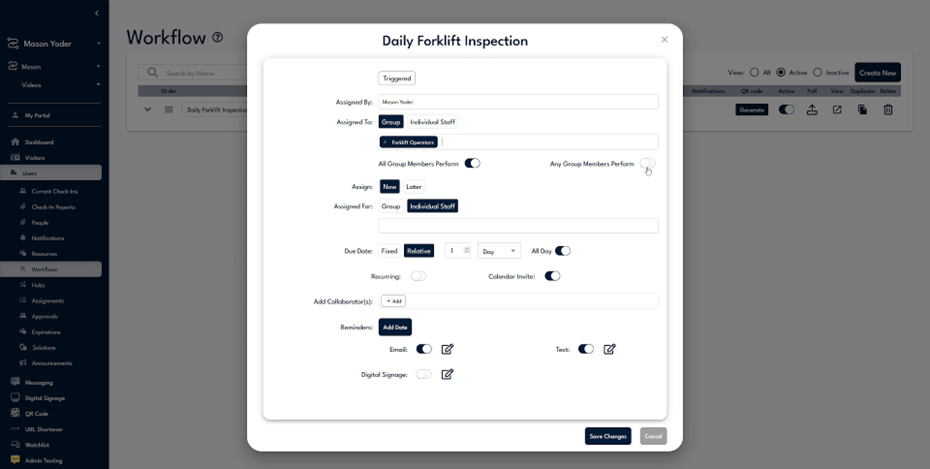
Step 7
In this scenario, choose 'any group member performs', as it's unnecessary for every operator to complete an inspection. A single person can fulfill this requirement.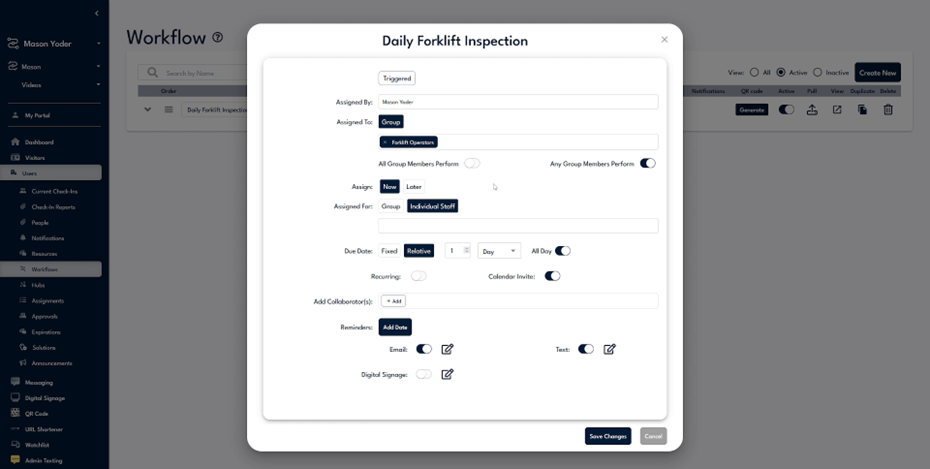
Step 8
Decide whether to assign the task immediately or at a later date and time. For this recurring example, select 'assign now'. Assignments can be set on behalf of someone else, but we'll leave this field blank for our example.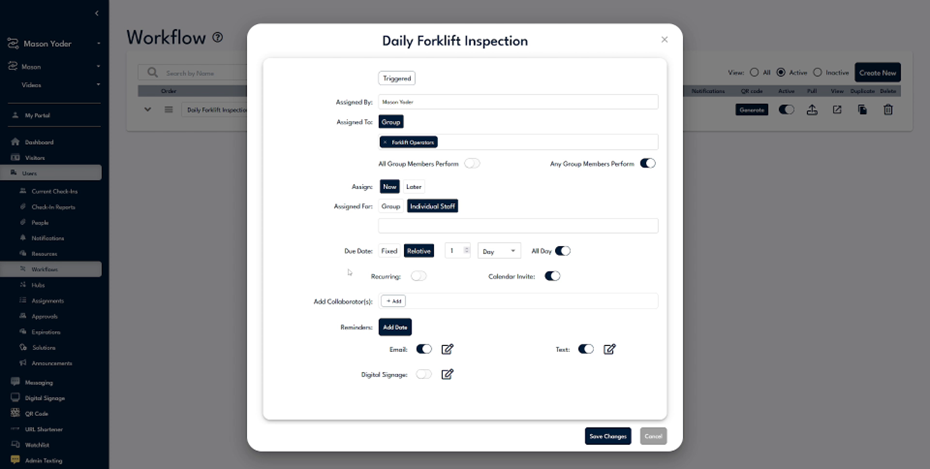
Step 9
Determine the due date: it can be a fixed date, or relative to the assignment start, such as one day, month, or hour later.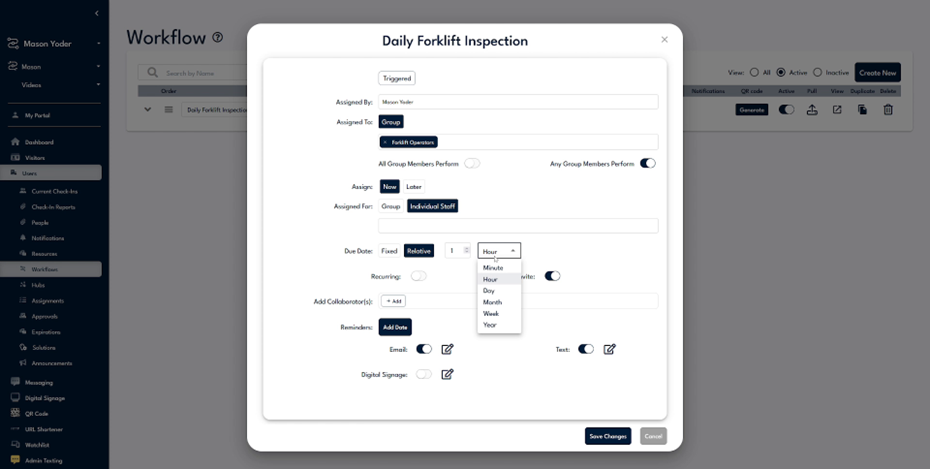
Step 10
Choose whether the due date is for the entire day or set a specific time, such as 5:00 PM, ensuring completion within the designated timeframe.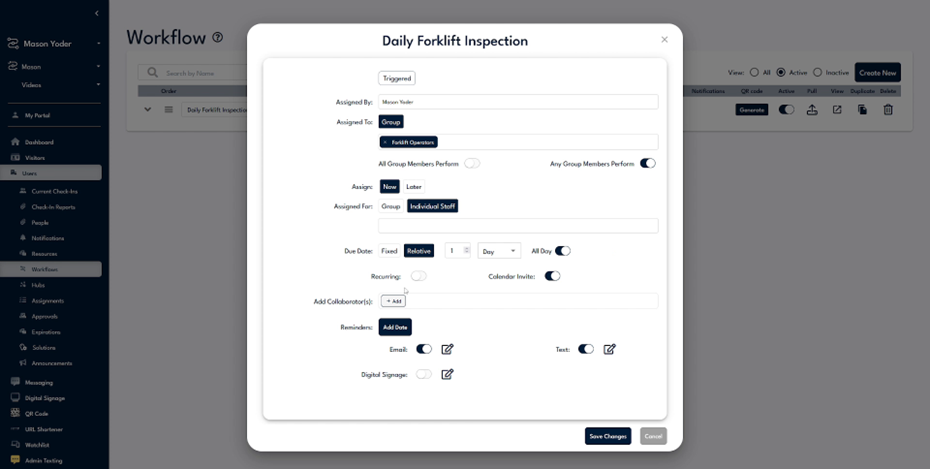
Step 11
Set a recurring schedule and adjust settings as needed. For daily forklift inspections, set it to recur daily. Determine if there is an end date for the recurring assignments.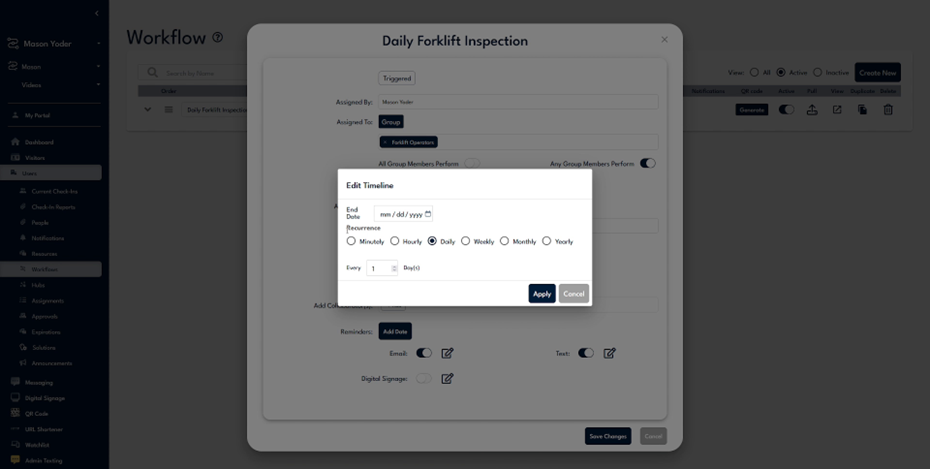
Step 12
Decide if this process will be temporary or ongoing. Leave the end date blank for continuous forklift inspections. Assign the task every day, or adjust frequency as desired.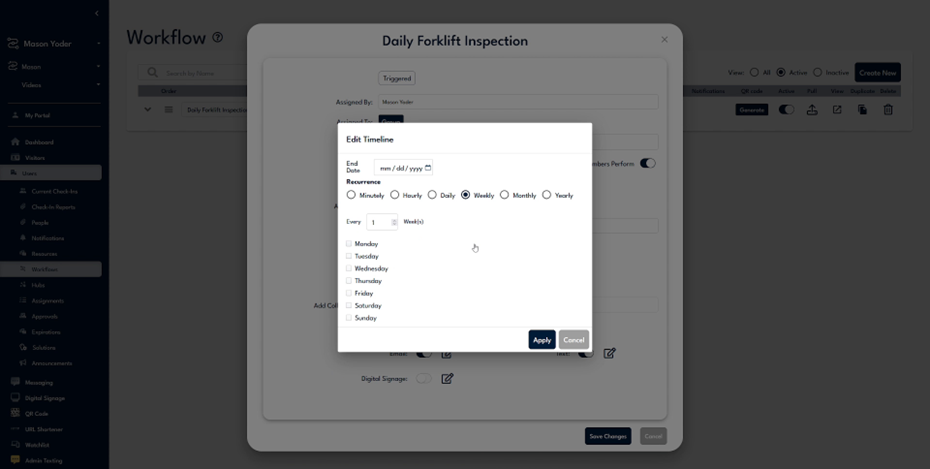
Step 13
Set the assignment to occur weekly or monthly, if preferred. For instance, schedule it for the first day of every month or the first Monday of each month.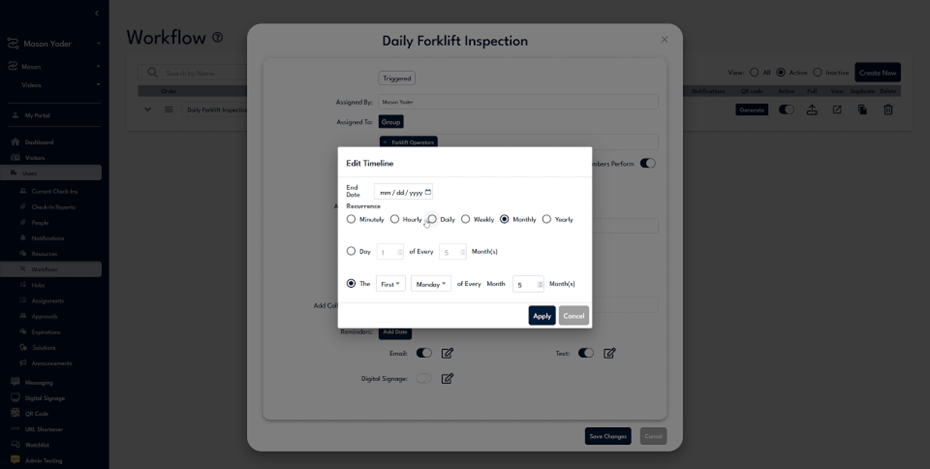
Step 14
For daily inspections, maintain the schedule at once every day. Collaborators can also be added to the assignment.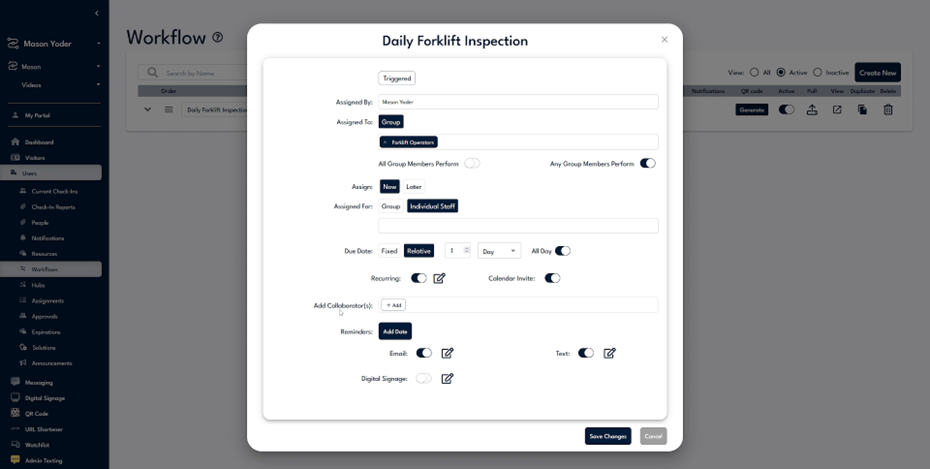
Step 15
Define a collaborator as someone who can access and edit the assignment even when it's not assigned to them. For example, a supervisor might need to sign off on an inspection.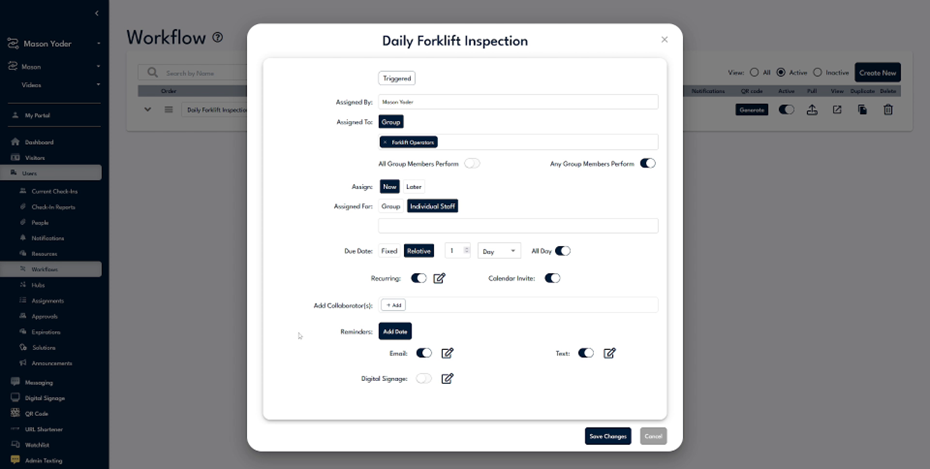
Step 16
Enable a Microsoft Calendar invite if needed, but disable it for this example. Set reminders to notify participants about upcoming tasks, such as a day or hour in advance.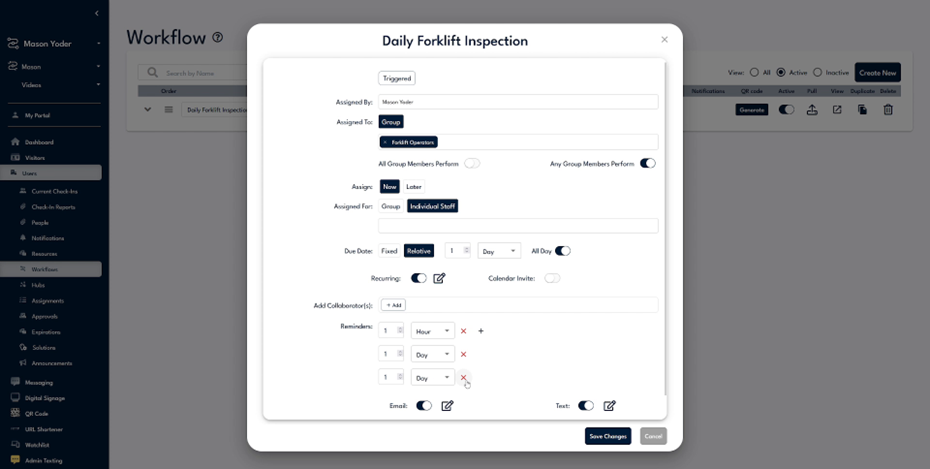
Step 17
Omit reminders for this example. Customize the message that participants receive, either via email or text. Modify the content as necessary, like reminding them to complete the inspection.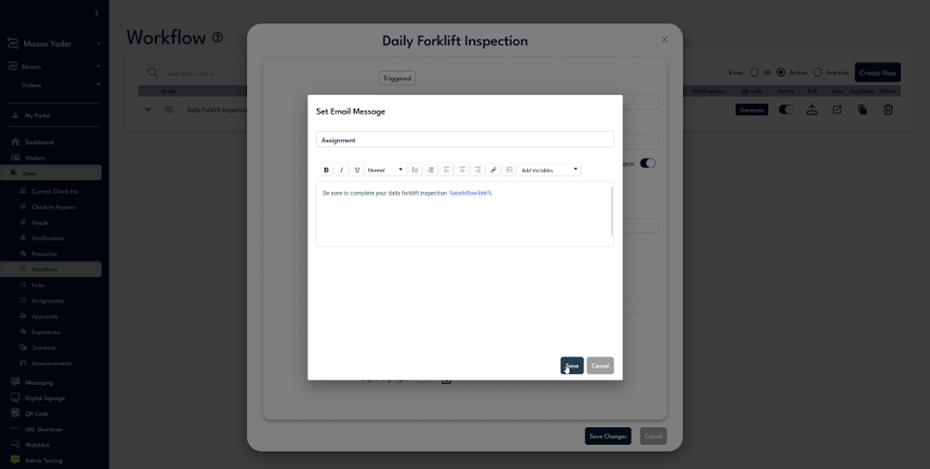
Step 18
The process sends an email prompting the completion of the daily forklift inspection, including a link to the assignment. Disable text notifications and save changes to activate the assignment. Verify in the assignments tab that operators have their tasks for the day.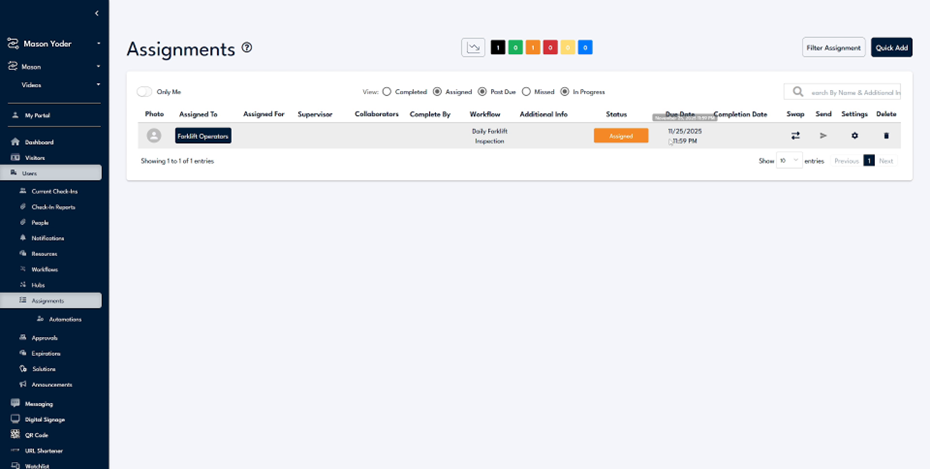
Step 19
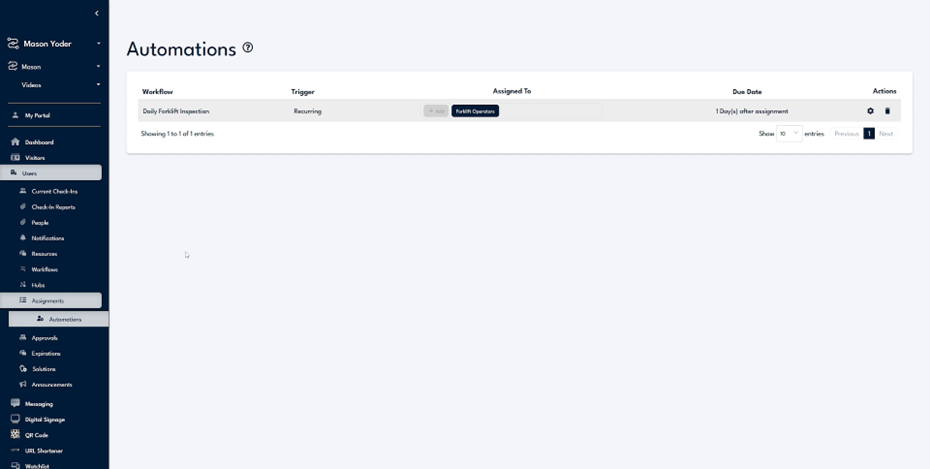
The assignment is due by the end of the following day. To review recurring or automatic assignments, access the automations tab for comprehensive details and tracking.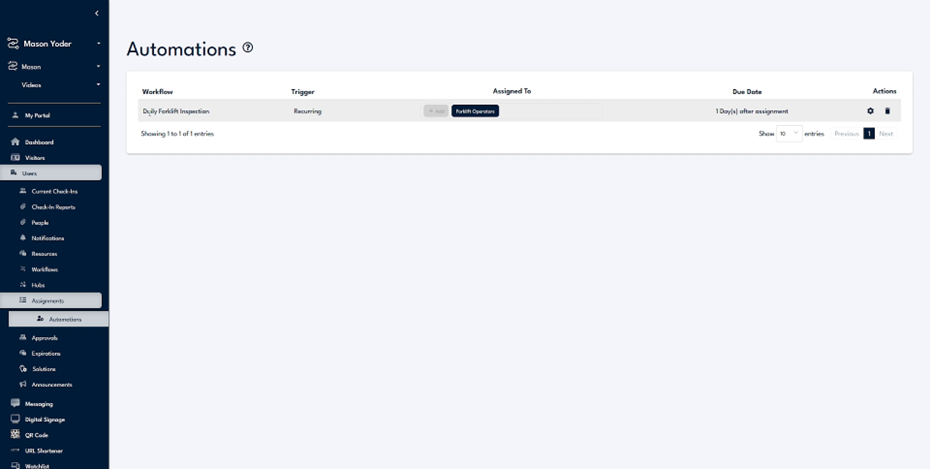
Step 20
Check the automations tab to confirm the daily forklift inspection's recurring assignment and its due date. Adjust settings quickly if needed, using the available options.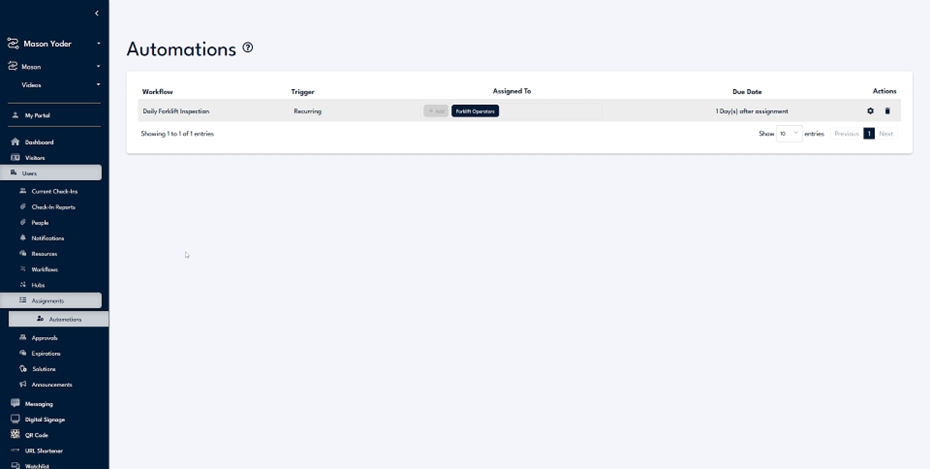
Step 21
The assignments feature is a valuable tool for maintaining workflow and information flow. For further assistance or questions about using assignments, contact the support team for help.