
Step 1: Open the Messaging Tab and Start a New Message
Navigate to the Messaging tab in Undesk.
In the top-right corner, click Create New to start a new mass message.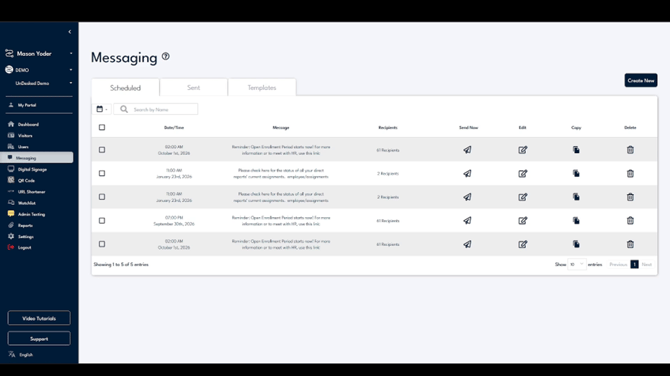
Step 2: Choose the Type of Message
You will see three options for the type of message you want to create.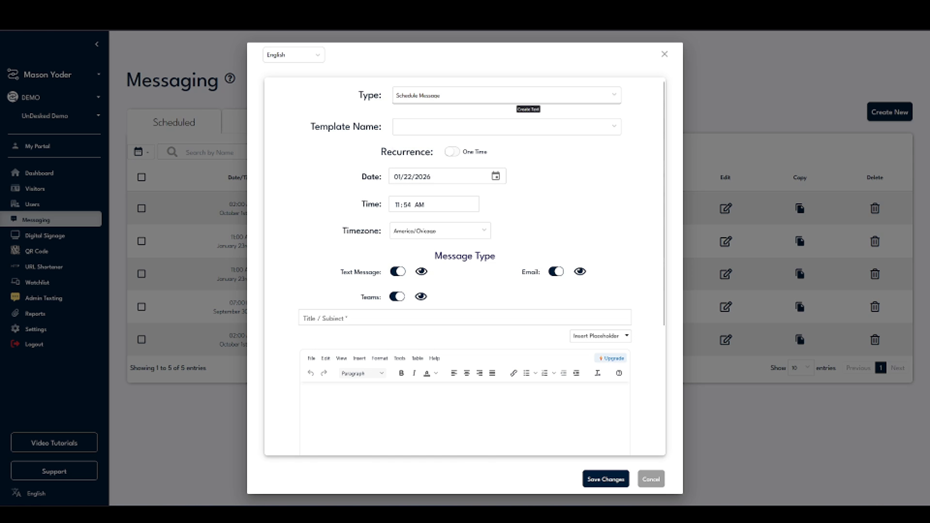
You can:
- Schedule the message to go out at a specific time,
- Create a template for future use,
- Or send it immediately.
Select the option that best fits your needs.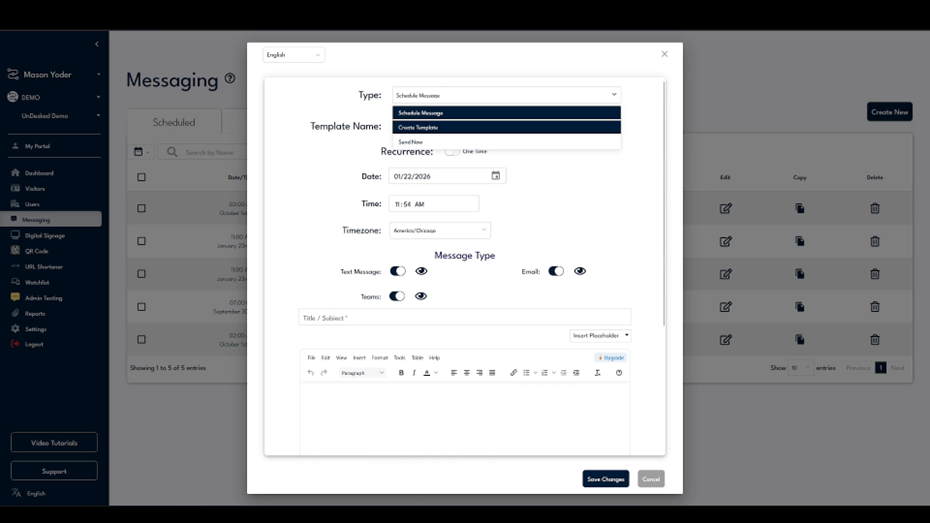
Step 3: Configure Delivery Channel and Compose the Message
Choose how you want the message to be delivered: Text Message, Email, or Microsoft Teams.
Add a subject line in the subject field.
In the body section, edit and format the content of your email or text message to be exactly what you’d like to send.
Step 4: Open the Recipients Section
Once your message content is ready, scroll down to the Recipients section.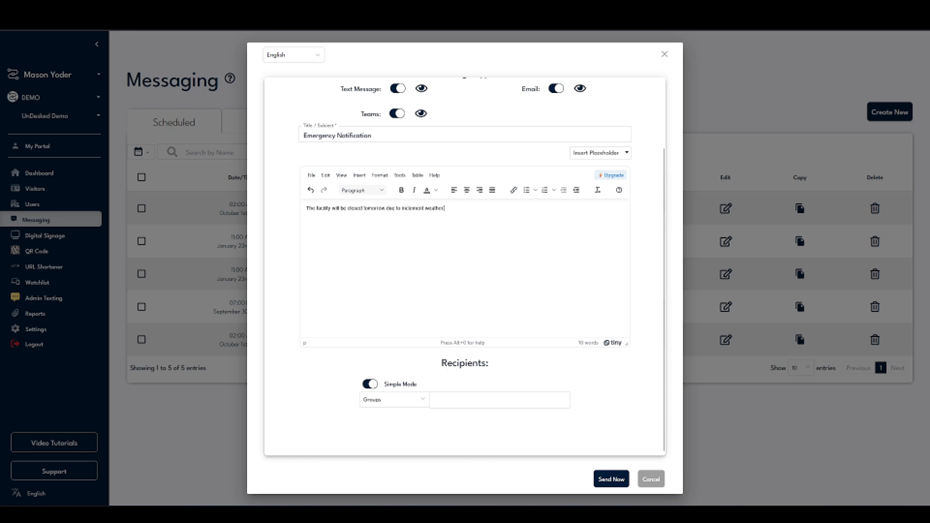
This is where you will decide who will receive the message.
Step 5: Send to All Users in the Organization
To mass-send the message to your entire organization, change the recipient type to User.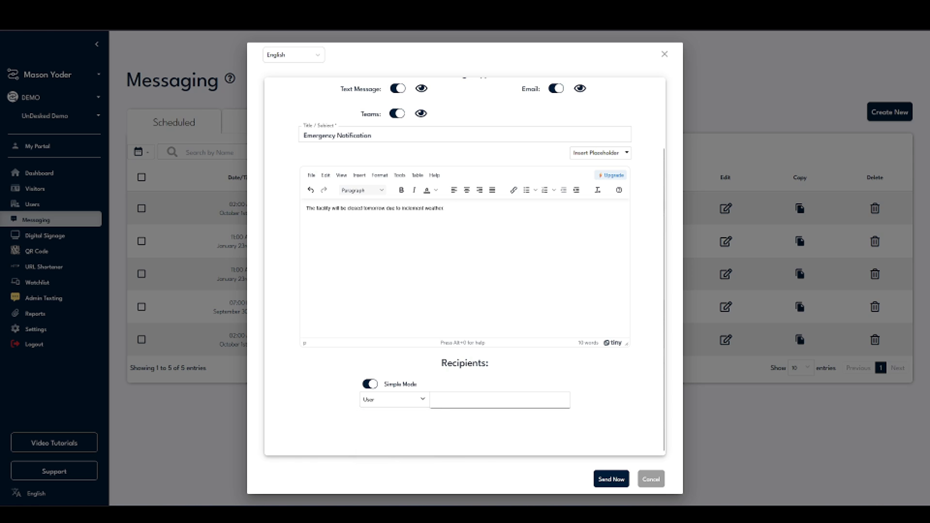
Then select All. This will include every member in your organization and send the message to all of them.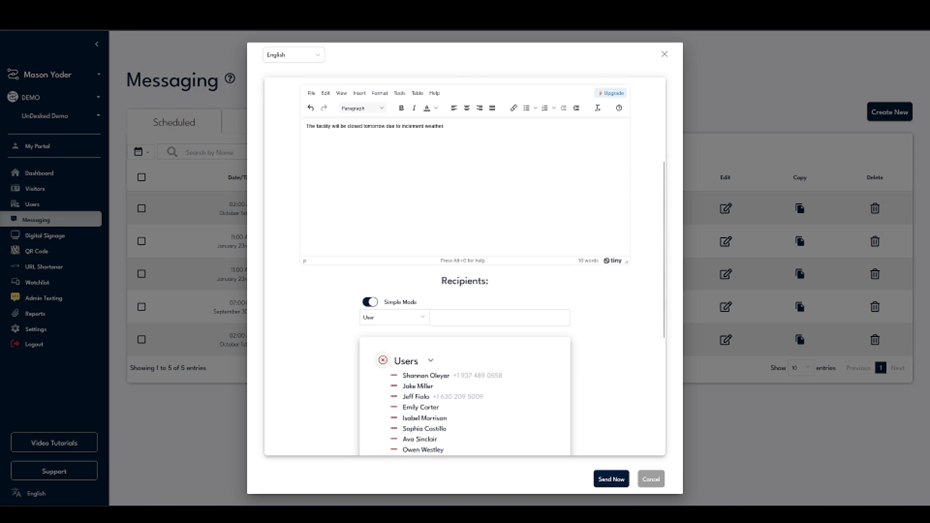
Step 6: Select or Adjust Specific Users
If you prefer to send the message only to certain people, you can designate specific users instead of sending to all.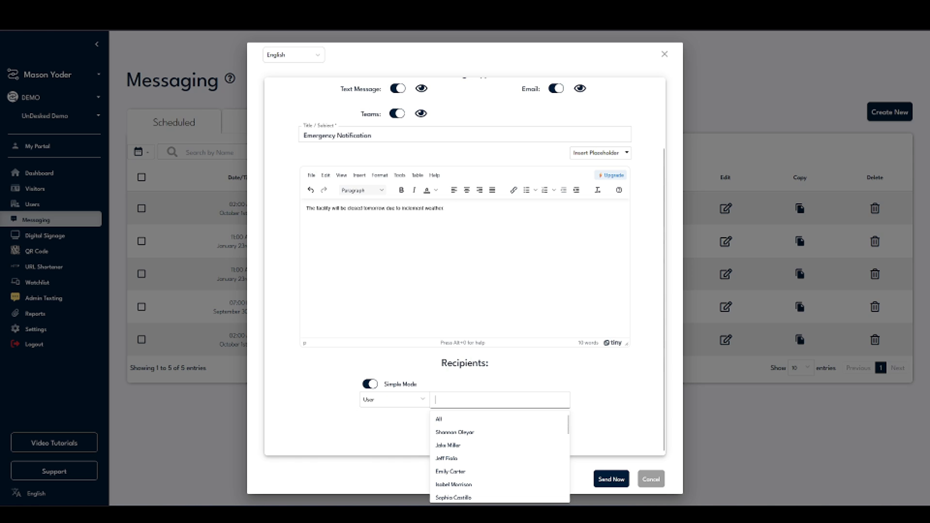
You can also remove individual users from the automatically created recipient list if needed.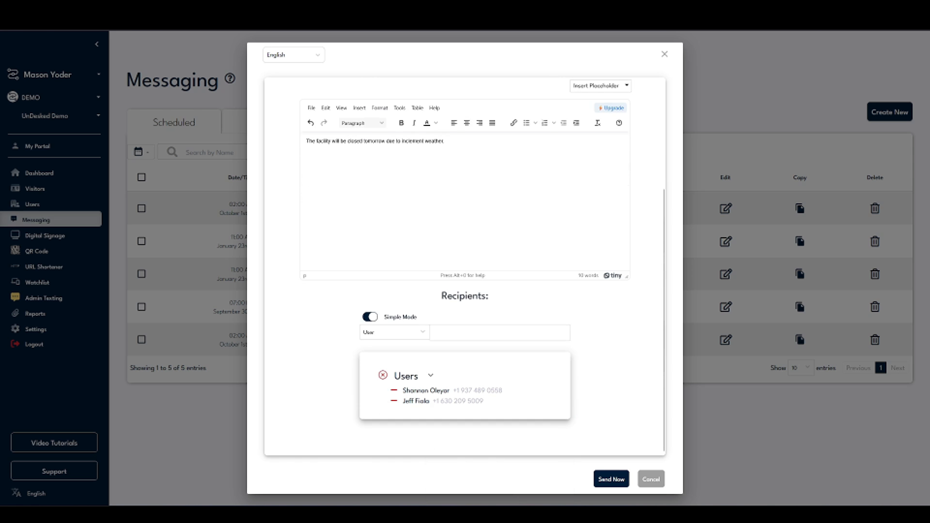
Step 7: Send to One or More Groups
If you have groups configured in Undesk, you can choose to send the message to one or multiple groups.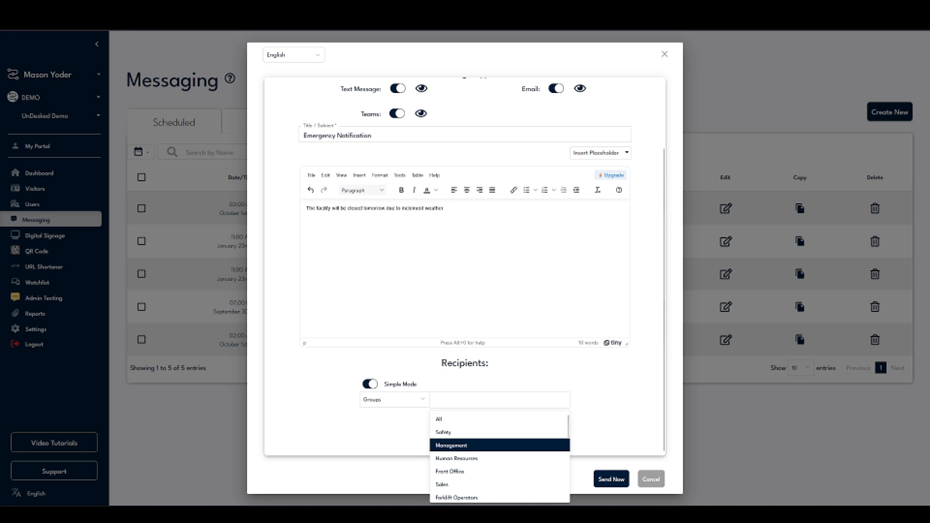
Select the appropriate groups to include all members of those groups as recipients.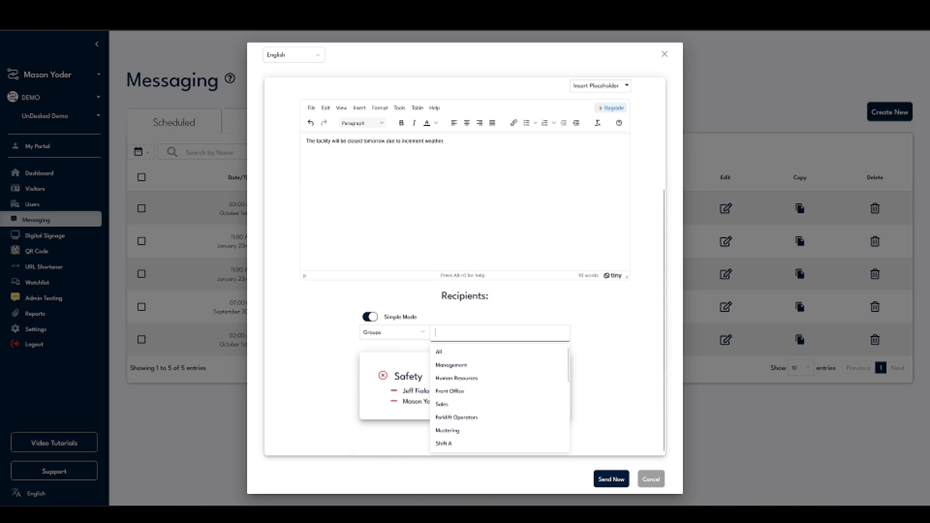
After confirming your recipients and message details, proceed to schedule or send the message based on the option you chose earlier.