
Step 1
In this segment, we will explore the methods to manage your workflows effectively. Workflows involve one or more resources combined to achieve a specific goal. For instance, an inventory low notice is constructed using two resources.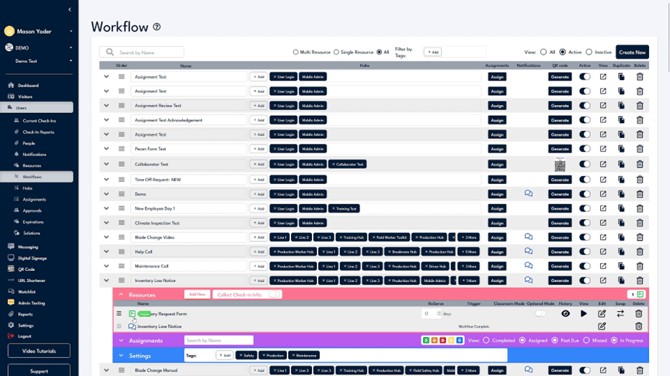
Step 2
The first resource involves a form for users to fill out the items they need, and the second is a notification sent to the relevant parties. To create a new workflow, simply click on the 'Create New' option in the top right corner, assign a suitable name, and click 'Create'. The new workflow will appear in your list, prompting you to add a resource.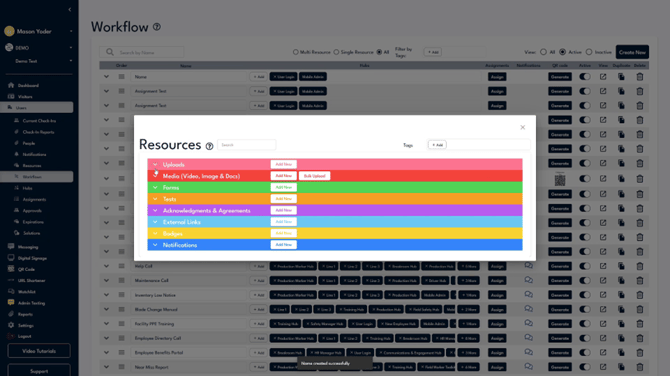
Step 3
At this stage, you may add any resource to the workflow or choose to skip this step by clicking on the 'X'. To manage a workflow, click the arrow next to the workflow name. Here, you can view resources, assignments, and settings, including check-in settings.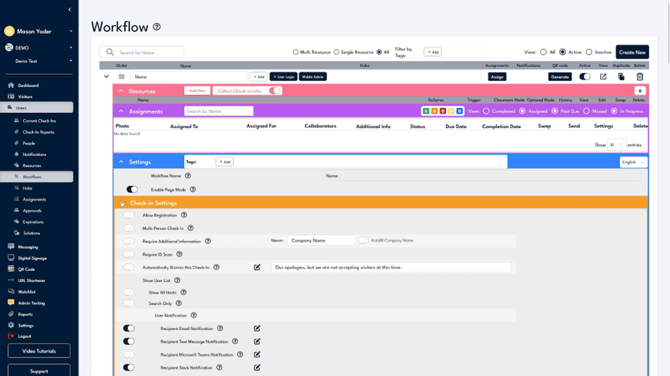
Step 4
On this screen, several options are available. You can reorder your workflows for better management, rename them, or add them to hubs for streamlined access.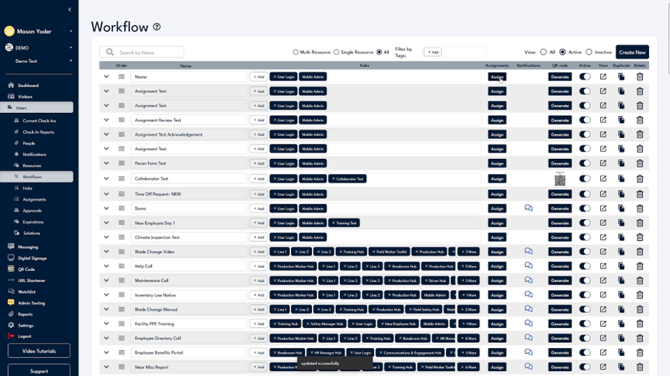
Step 5
You can assign tasks within the workflow, check for any linked notifications, and generate a QR code for convenient access or sharing. 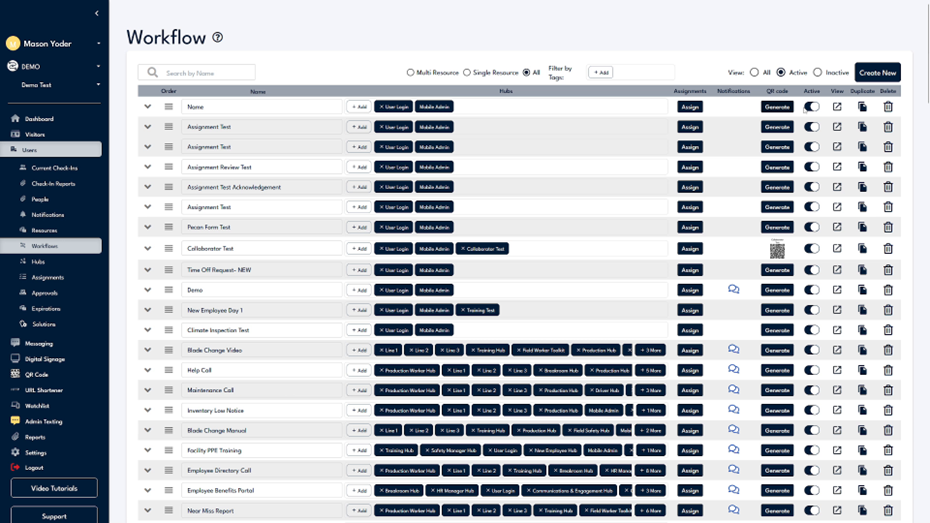
Step 6
You have the option to mark the workflow as active or inactive, preview it, and even duplicate it if necessary. For any questions or further assistance, please click on the 'Support' button located in the bottom left corner of your screen, where help is readily available.