
Step 1: Access the Hardware Settings
Log into the Undesked platform. From the main navigation, click on Settings.
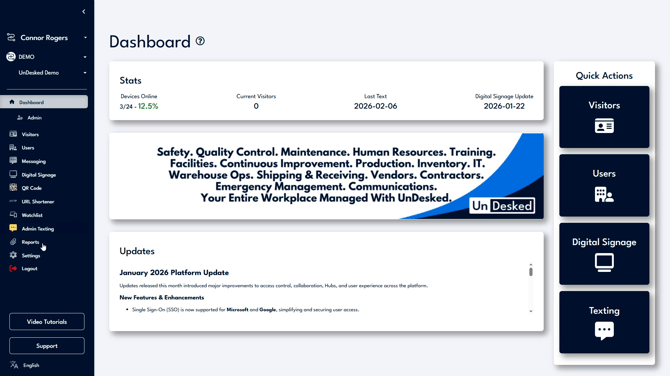
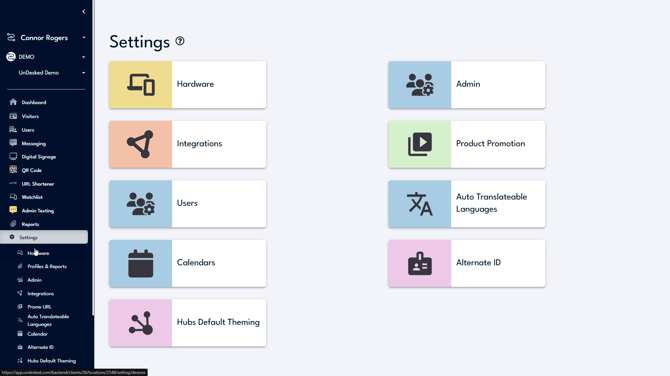
Within Settings, select Hardware to open the hardware management page.
Step 2: Review Hardware Details and Controls
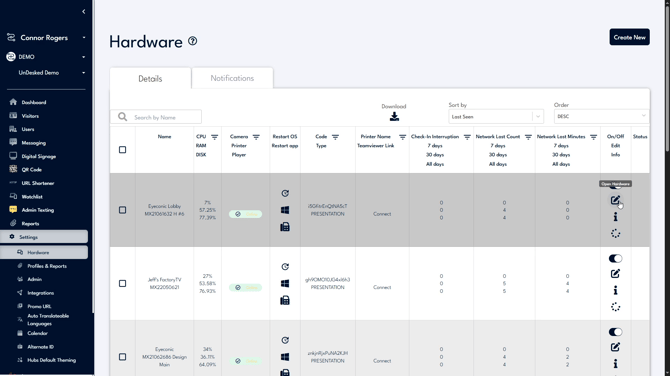
On the Hardware page, review the list of all your devices. For each device you can see key information, including:
- Device name
- Device statistics
- Online/offline status
- Device uptime and downtime
From this page, you can also restart the device or its operating system as needed.
Step 3: Edit Device Information and Settings
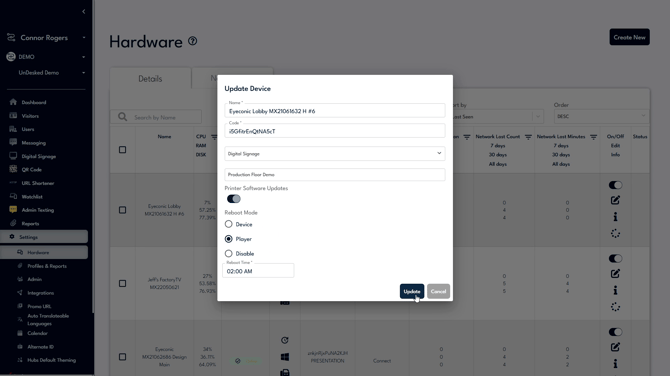
On the far right of each device row, click the pencil icon to edit that device.
In the edit panel, you can:
- Rename the device
- Update the device code
- Reassign the content assigned to the device
- Set a reboot mode and schedule a reboot time
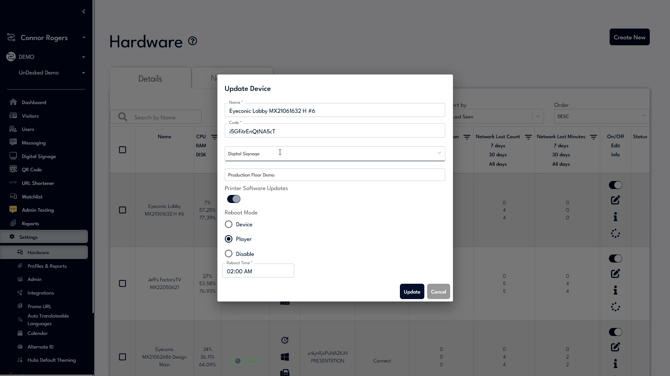
After making your changes, click Update to save them.
Step 4: Contact Support if Needed
If you have additional questions or need assistance, click the Support button located near the bottom left side of the navigation bar.