
Step 1: Login to Microsoft Entra Portal
-
Go to: https://entra.microsoft.com
-
Login with your Microsoft admin account.
Step 2: Register a New Application
-
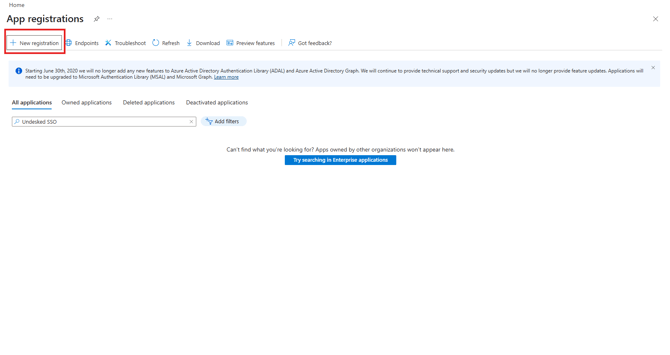
Click "App registrations" from the left menu.
-
Click "+ New registration".
-
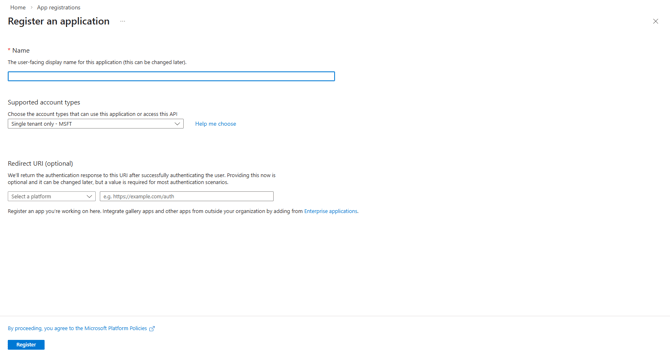
Enter an application name (example: UnDesked OIDC Integration).
-
Keep the default settings (Single tenant recommended).
-
Click "Register".
Step 3: Copy Client ID and Tenant ID
-
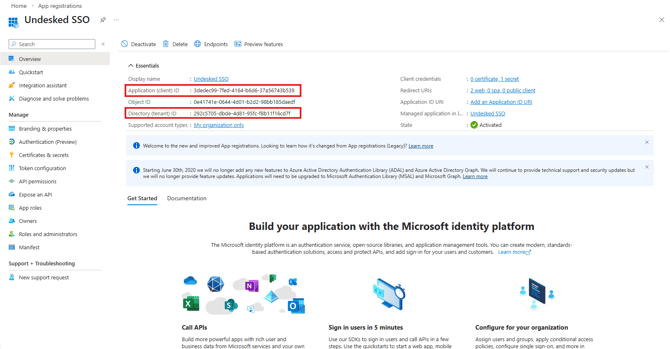
Open the "Overview" tab of the newly created app.
-
Copy the following values:
-
Application (Client) ID
-
Directory (Tenant) ID
-
You will need these values in UnDesked.
Step 4: Create Client Secret
-
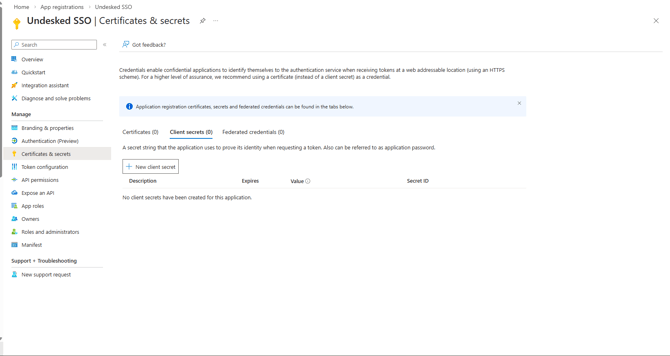
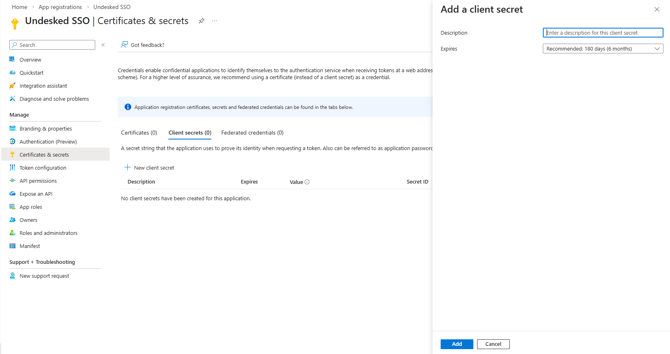
Go to "Certificates & secrets".
-
Click "+ New client secret".
-
Add description (example: UnDesked Secret).
-
Choose expiration period as per your security policy.
-
Click "Add".
-
Copy the Secret VALUE immediately and save it securely.
IMPORTANT: The secret value will not be visible again after you leave the page.
Step 5: Configure Redirect URLs
-
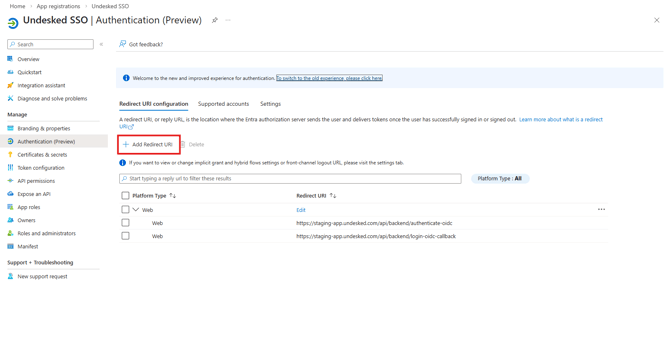
Go to "Authentication (Preview)".
-
Click "+ Add a platform".
-
Select "Web".
-
Add the following Redirect URIs:
https://app.undesked.com/api/backend/login-oidc-callback https://app.undesked.com/api/backend/authenticate-oidc
5. Click "Save".
Step 6: Configure in UnDesked
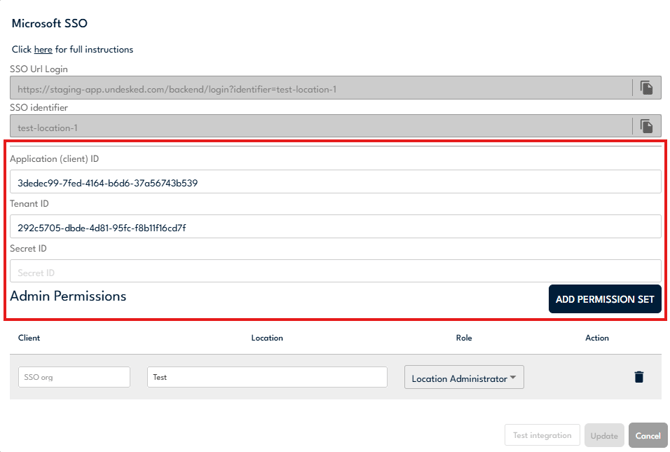
Open the UnDesked Integration Configuration dialog and enter:
Client ID: (Application ID from Overview)
Tenant ID: (Directory ID from Overview)
Client Secret: (Secret value created earlier)
Click "Test Integration".
If everything is configured correctly, the integration will succeed.
Notes:
-
If the secret expires, generate a new one and update it in UnDesked.
-
Make sure the redirect URLs are entered exactly as shown (including https).
Step 7: Login via SSO
Any person, who logins via SSO, won’t be able to login with UnDesked password once they logins via SSO
You can provide “SSO Identifier” or SSO URL to users so they can login with UnDesked. Permissions here will be applied to any user that logins via SSO but isn’t part of UnDesked yet. For users, that already exists in UnDesked, their existing permissions will remain intact. This will make any/all EntraID users to be able to login via SSO into UnDesked.
If you want to restrict SSO login to only certain group of people in Entra ID, you can do so by applying restrictions within EntraID