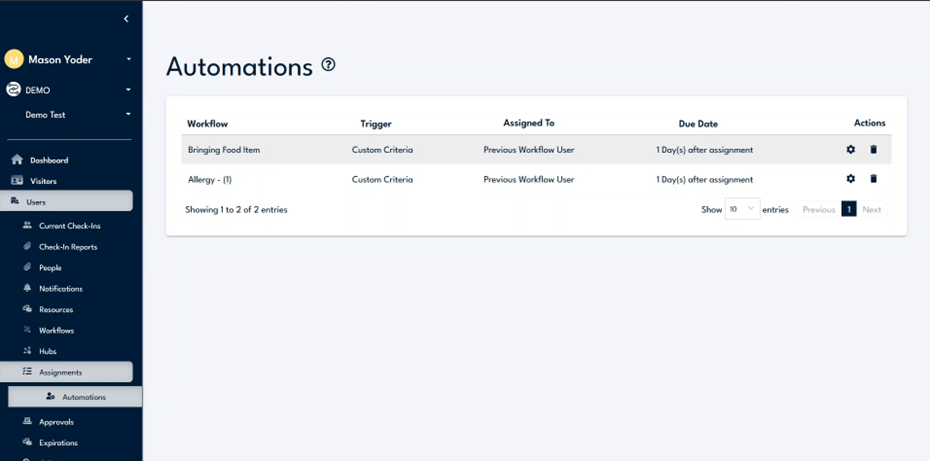
Step 1
Begin by setting up triggered assignments using advanced custom criteria, such as user profile properties or specific form responses. For instance, you can configure a test form to assign tasks based on user responses to particular questions.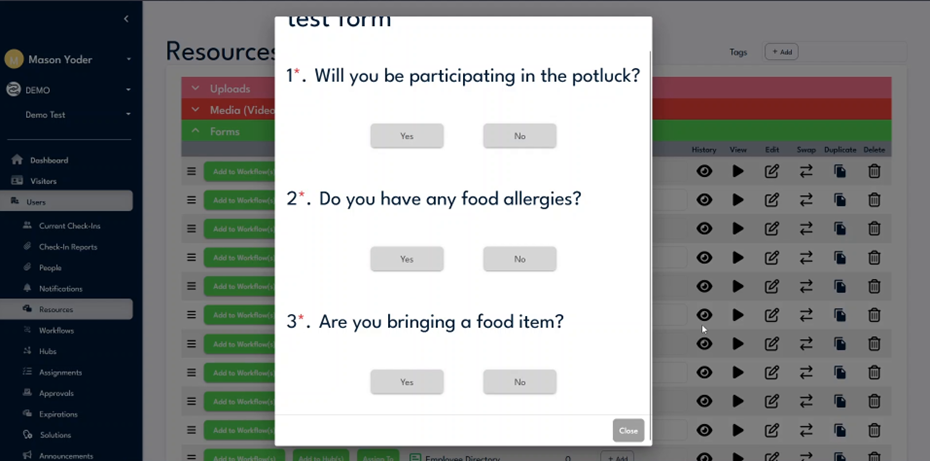
Step 2
To proceed, assign the "bringing food item" task to the test form if the user indicates they will bring a food item. Set this assignment to be triggered by custom criteria. Open the test form acknowledgment, add a rule, and select the appropriate form.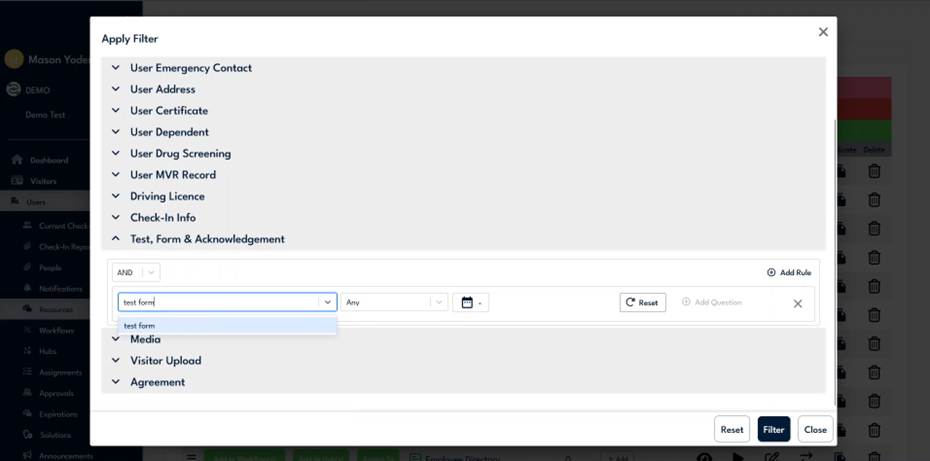
Step 3
Configure the criteria to trigger the assignment regardless of whether the form is passed or failed, since there is no pass/fail condition. Optionally, set a custom date range for triggering the assignment, or leave it open-ended. Proceed to add a question and rule.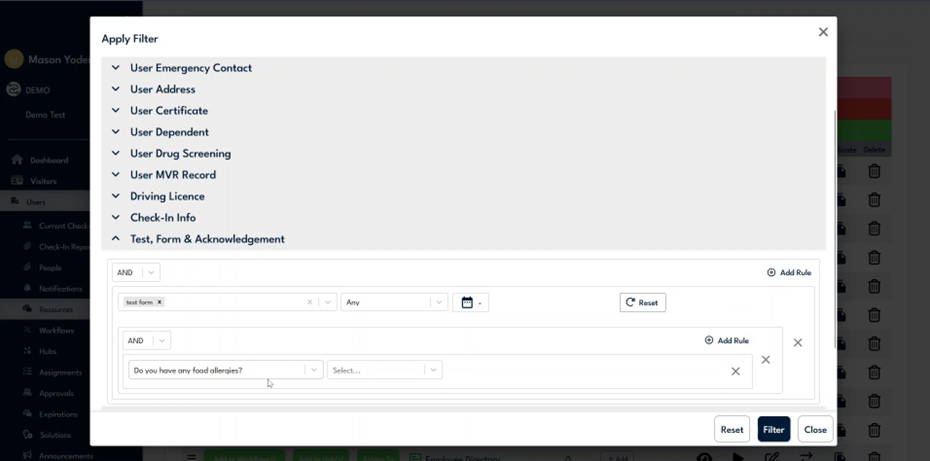
Step 4
Review the list of questions on the form and select the one about bringing a food item. Specify that the task should be assigned if the user selects "Yes" to bringing a food item.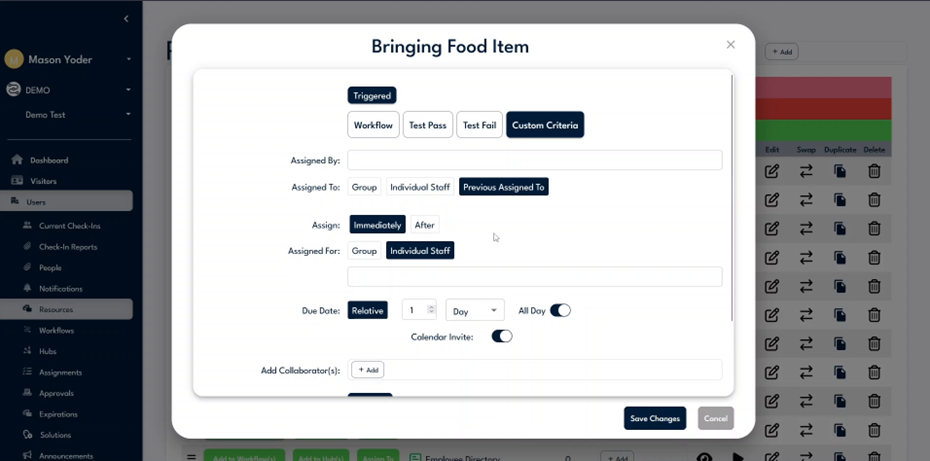
Step 5
Complete the remaining fields in the form as required.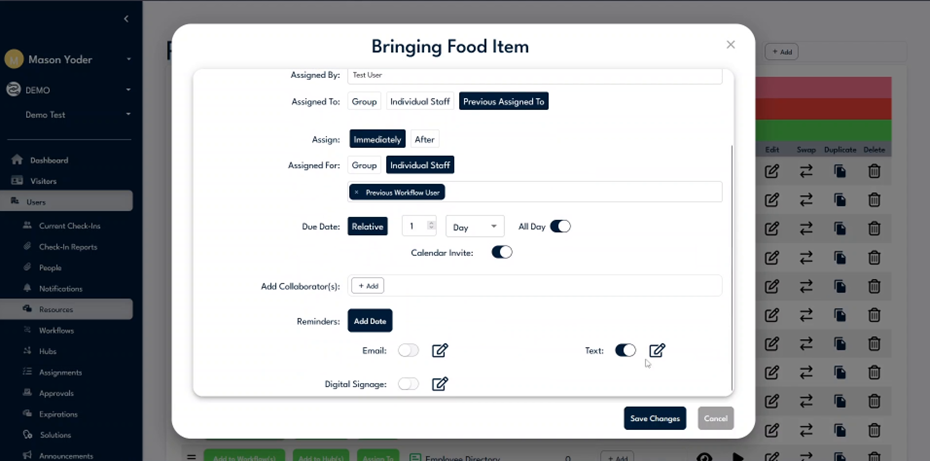
Step 6
Navigate to the assignments and automations section to verify the "bringing food item" workflow. Confirm it is triggered by custom criteria and will be due one day post-assignment. Use this section to make quick edits if necessary.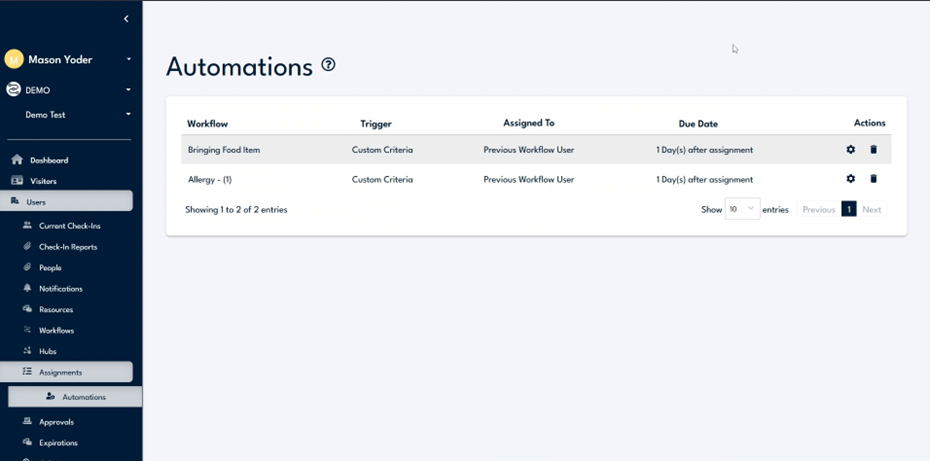
Step 7
Access the form and respond affirmatively to the relevant questions.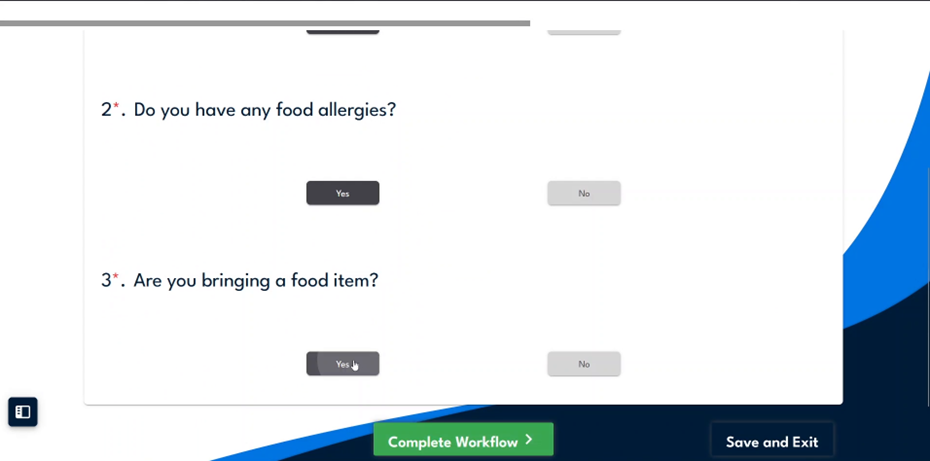
Step 8
Check to ensure the "bringing food item" workflow is assigned. Sign in to the hub and review the assigned tasks.
Step 9
Verify that the "bringing food item" workflow has been correctly assigned based on your response about bringing a food item. Review the assignments section to confirm the workflow and view the automation linked to the form and item assignment.