Step 1
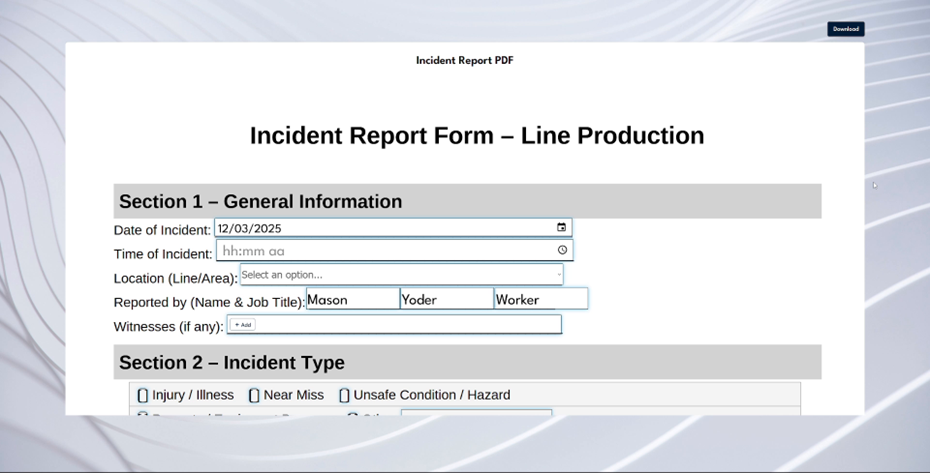
In this video, we will explore resource forwarding, an automated method to send completed forms to the appropriate recipients. Instead of relying on manual emails or notifications, the system will manage this instantly. This capability is particularly beneficial where timely communication about incidents, maintenance issues, or safety reports can prevent delays, reduce risk, and ensure smooth operations.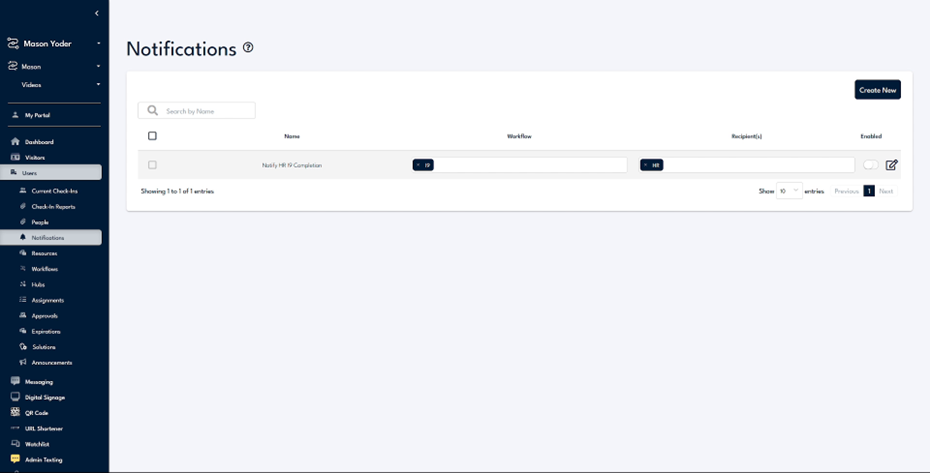
Step 2
To configure the resource forwarding notification, navigate to the notification screen and select "Create New." For this example, we will forward a completed incident report to the HR and safety teams. Name this notification "Incident Report," select the corresponding workflow, which is the "Incident Report" workflow, and set the trigger to "Resource Forwarding."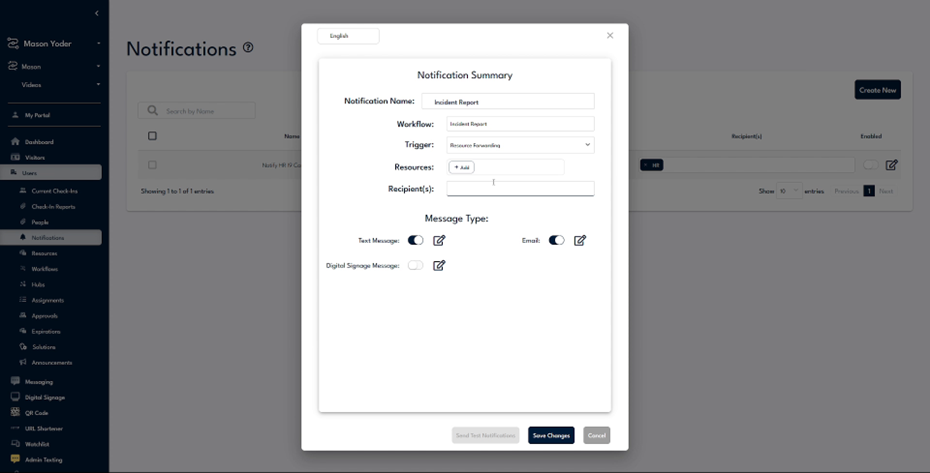
Step 3
An additional box will appear where you can specify the resources to forward, which will be drawn from the selected workflow. We intend to send this to the HR and safety teams, so add them as recipients. You can choose the method of delivery—either as a text message, an email, or through digital signage.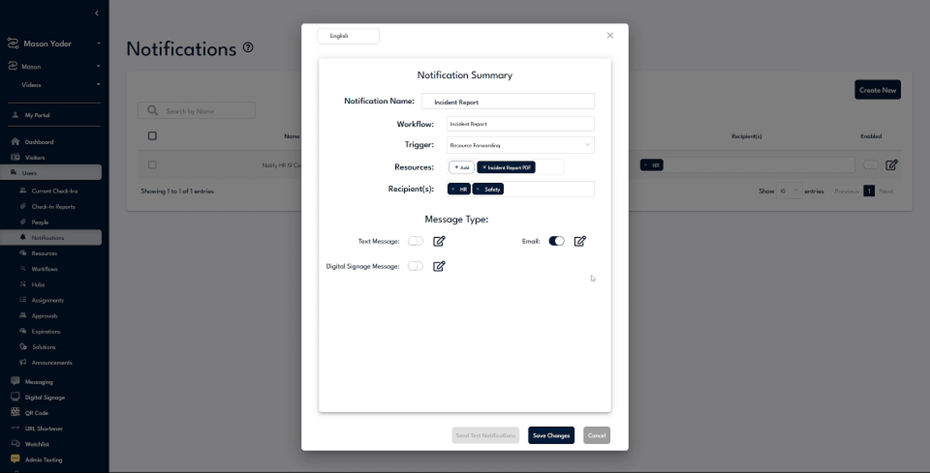
Step 4
For this demonstration, we will send out an email. As seen, we now have an incident report notification set to forward the completed resource to the HR and safety teams. Complete the form to view how it appears to the HR and safety team.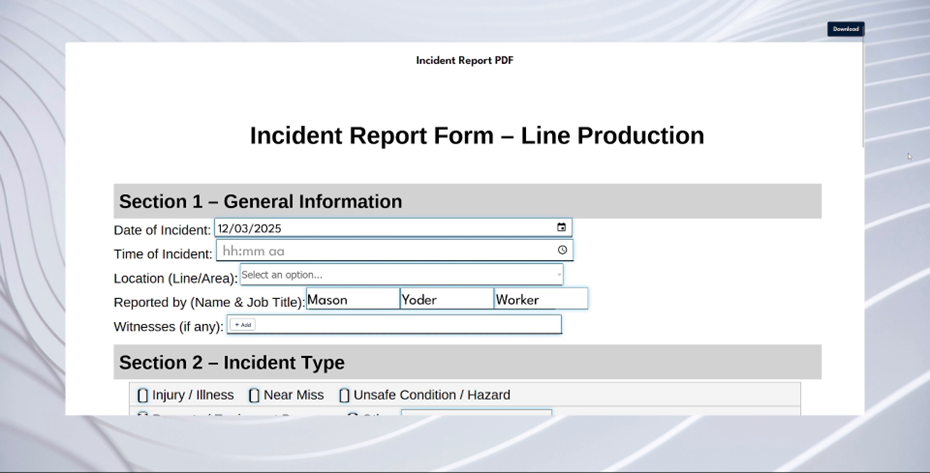
Step 5
After clicking on the email link, the incident report form is displayed. The form now includes the information filled in previously, and it is available for review. There is also an option to download it located in the top right corner.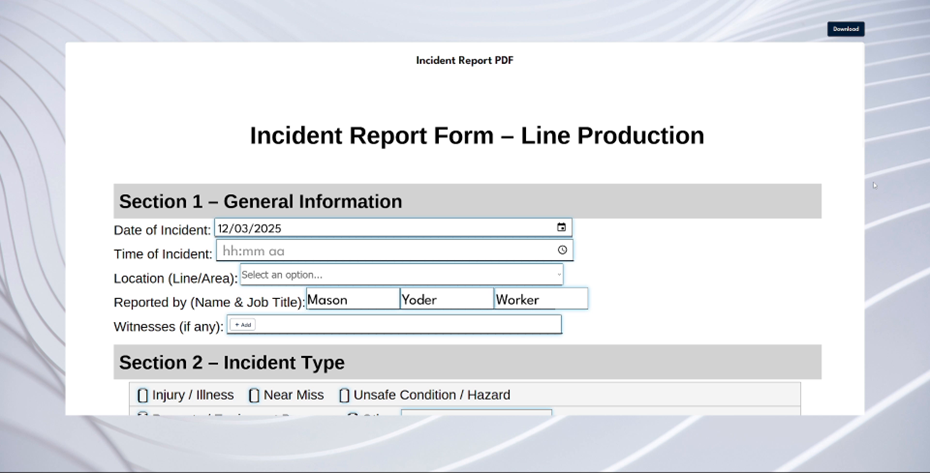
Step 6
If you have further questions, feel free to reach out to the Undesked team at any time, and they will be happy to assist you.