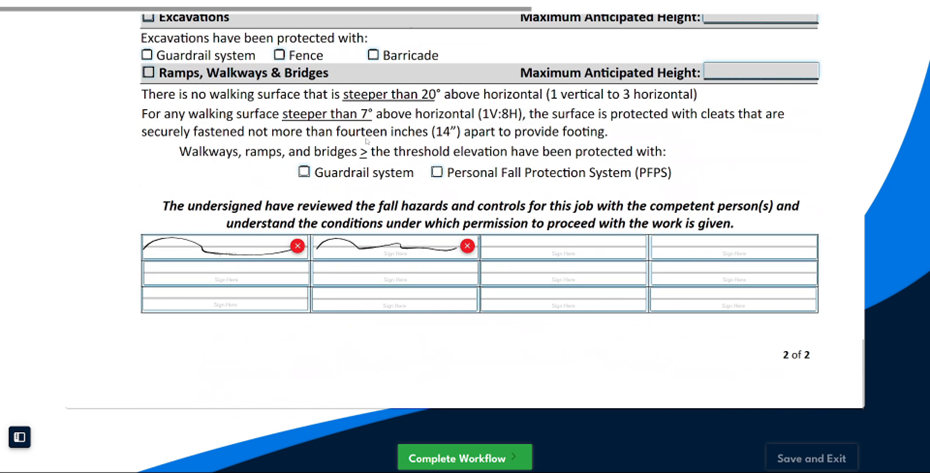
Step 1
In this video, we highlight the collaborators feature, which allows multiple team members to work on the same document simultaneously. This facilitates faster turnarounds, eliminates bottlenecks, and enables real-time input. Whether it's updating a maintenance checklist or reviewing an incident report, any team member can contribute without having to wait for others to finish.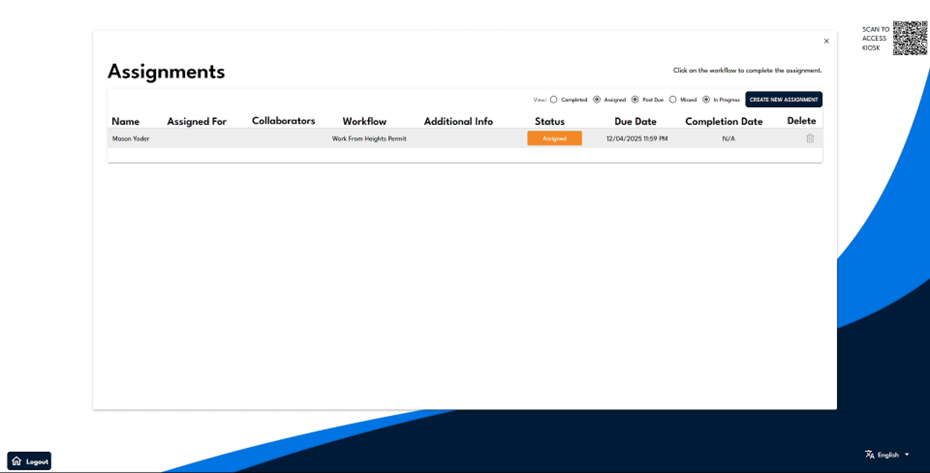
Step 2
To ensure your documentation is always accurate and up-to-date, you can explore this feature by opening an assignment that has been allocated to you. For instance, you might have a work-from-heights permit assigned to you.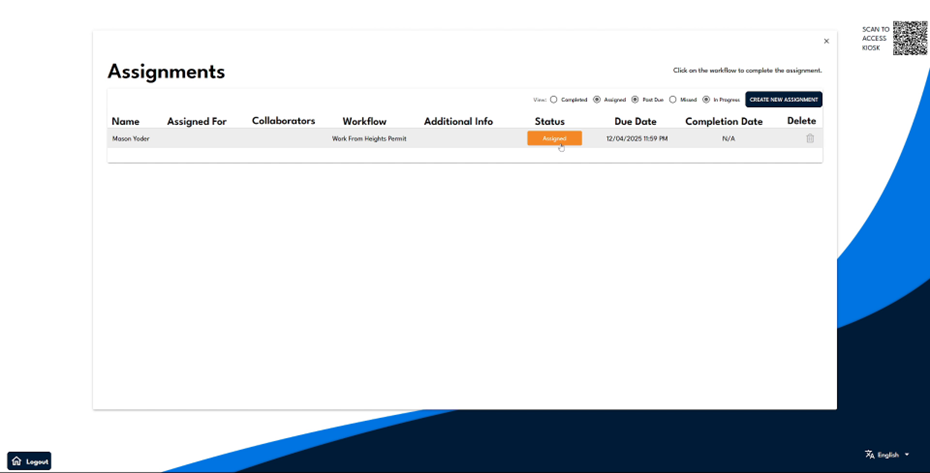
Step 3
Open the assigned form, and you will notice at the bottom that signatures from coworkers who are part of the job are required. Begin by filling out some of the necessary information on the form.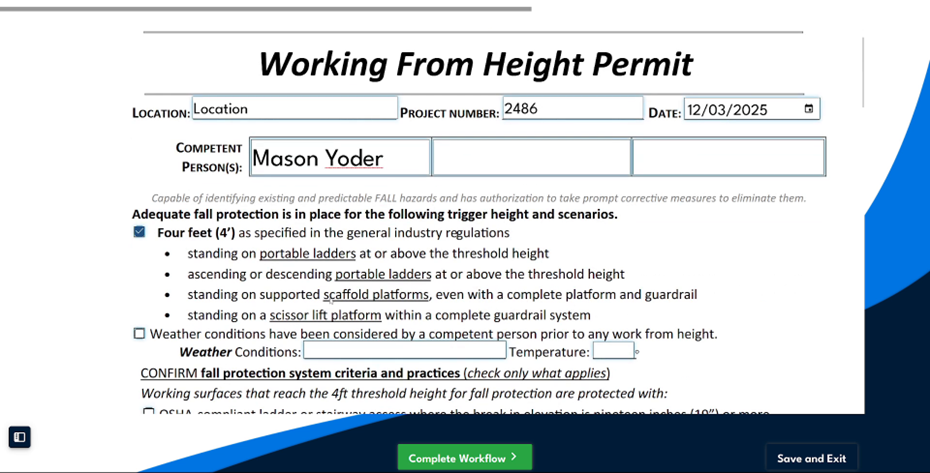
Step 4
Once the form is filled and you have signed your name, but now require a coworker's signature, navigate to the top of the document. Select the 'Add Collaborators' option, where you will see a list of other users to choose from.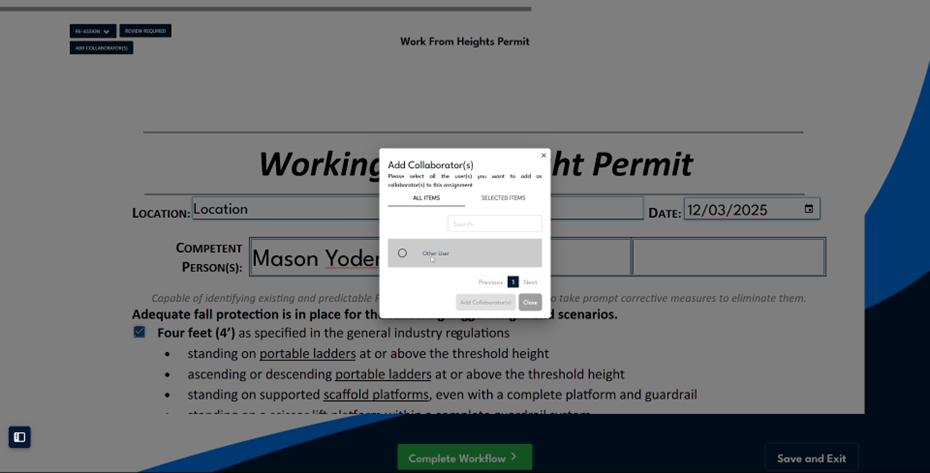
Step 5
Select another user to become a collaborator. Then, switch to that user's account to proceed. In their assignments section, you can view that they have been added as a collaborator to the work-from-heights permit.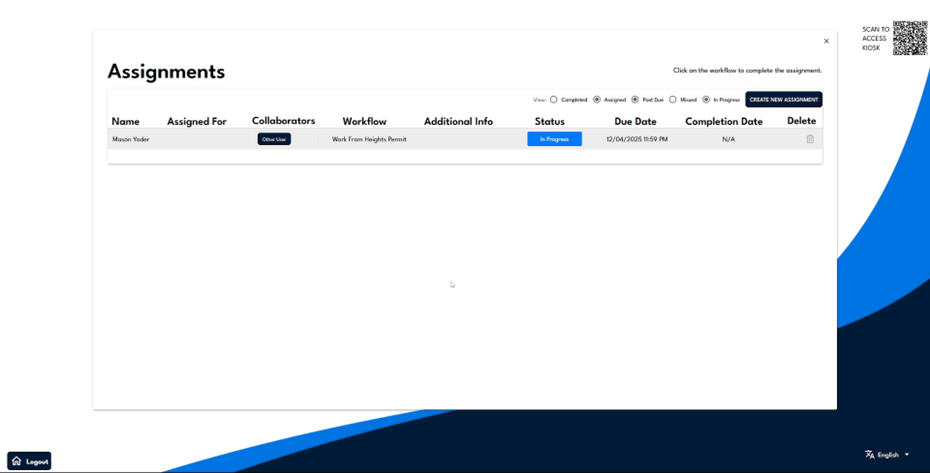
Step 6
Select the permit and open it to see that the information entered from your account is still present, and updates are reflected in real-time. Both team members can fill out the form as required; in this scenario, the other user only needs to add a signature to complete the process.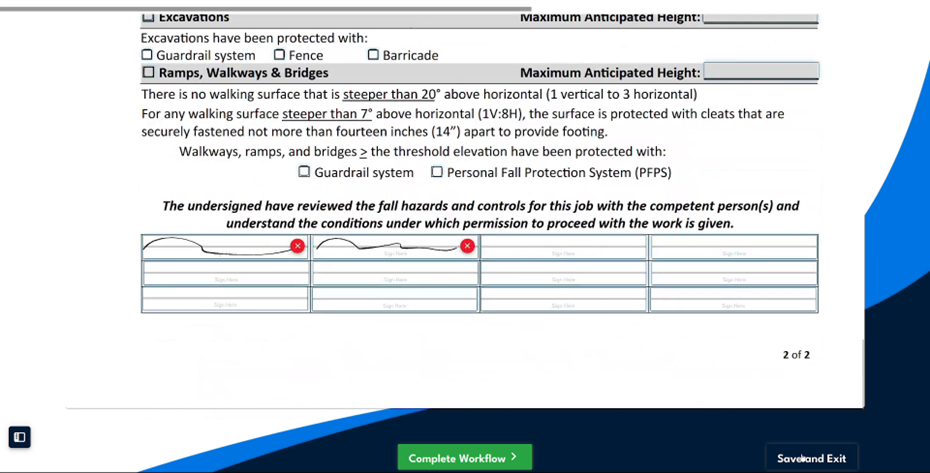
Step 7
After completing the form, the collaborator can simply save and exit.